> For the complete documentation index, see [llms.txt](https://help.metaforms.ai/llms.txt). Markdown versions of documentation pages are available by appending `.md` to page URLs; this page is available as [Markdown](https://help.metaforms.ai/survey-programming-dimensions/ai-rules.md).
# AI Rules
### What Are AI Rules?
AI Rules allow you to define and organize programming logic that guides MetaForms' AI agent when generating survey code. Instead of relying solely on the model's baseline intelligence, you provide your own instructions, examples, and code patterns — so the agent produces output that matches your team's conventions, client requirements, or platform-specific standards.
Rules are organized into **folders**. Each folder acts as a logical grouping — for example, one folder for a specific client's conventions, another for a particular question type pattern. When a project is created, the relevant folders are applied and the AI agent follows the rules contained within them.
**An AI Rule Folder includes:**
* A folder name and hosting platform selection
* Folder-level instructions (shared guidance for all rules in the folder)
* A collection of individual AI Rules
* Usage permissions (who can edit)
* Usage insights and version history for each rule
***
### AI Rule Folder Types
There are two types of folders, which determine how they're applied to projects:
| Folder Type | Behavior |
| --------------- | --------------------------------------------------------------------------------------------------------------------------------------------------------- |
| **Always** | Applied to every project automatically. Cannot be removed during project creation. Use for organization-wide standards. |
| **If Selected** | Optional. Can be checked or unchecked during project creation. Pre-selected only when linked to a Template. Use for client-specific or situational rules. |
> **Tip:** "Always" folders are best for universal conventions (e.g., "all single-select questions must have an exclusive 'None of the above' option"). "If Selected" folders work well for client-specific or team-specific logic that only applies to certain projects.
***
### Getting Started
Navigate to the **AI Rules** from the main menu to view, create, and manage your rule folders.
***
### Creating an AI Rule Folder
**Step 1:** Click **Create** to start a new folder. Enter a descriptive folder name — use names that reflect the team, client, or use case it covers (e.g., "Client A Conventions", "CATI Standard Rules", "Grid Question Patterns"). This helps programmers quickly identify which folders to select during project setup.

**Step 2:** Select when to use the folder (**Always** or **If Selected**), choose who can edit it, select the **Survey Hosting Platform** (e.g., Unicom), and click **Create**.

***
### Adding Rules to a Folder
Once your folder is created, open it to start adding individual rules.
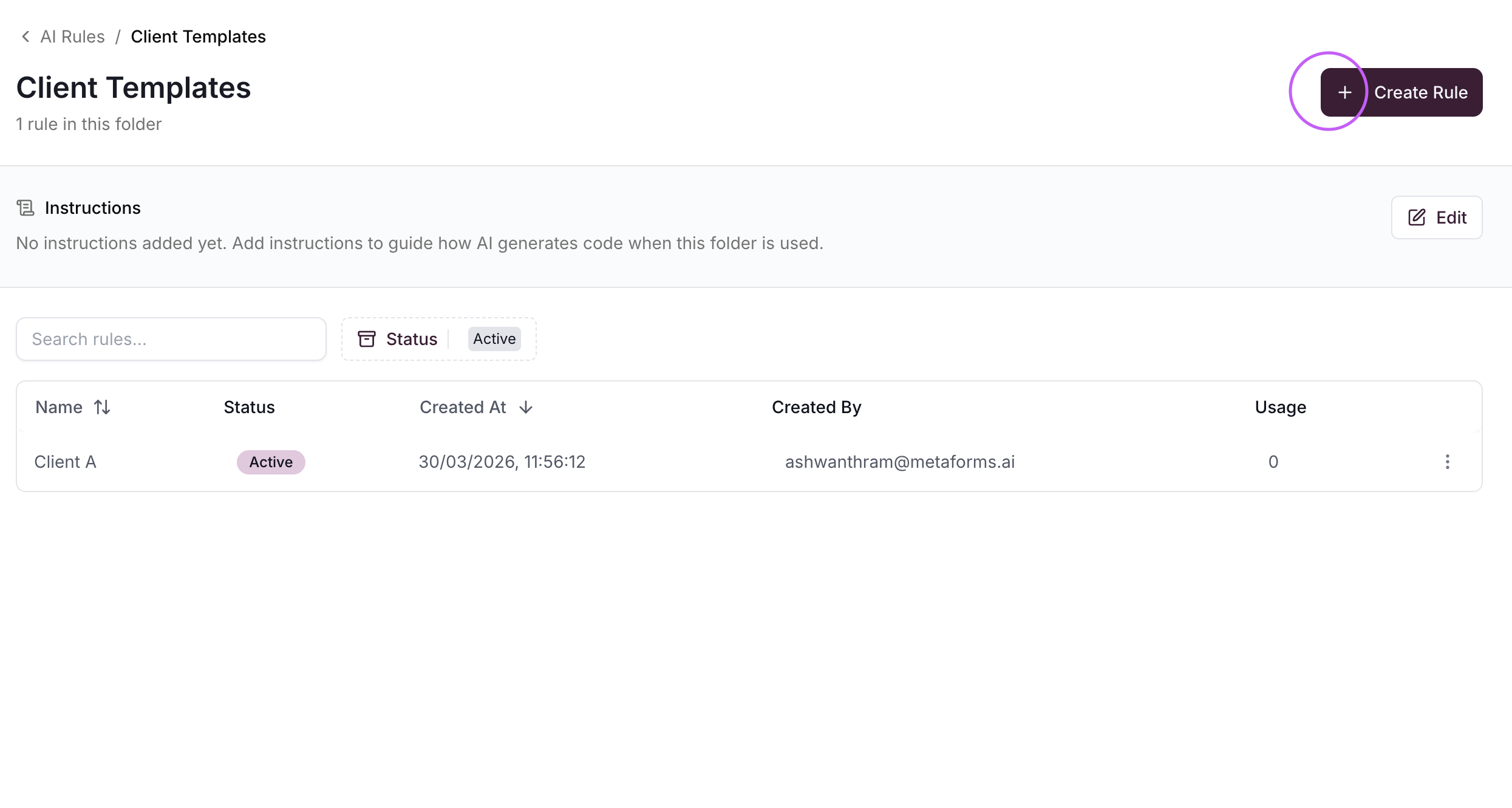
**Step 3:** Click **Create Rule** and enter a descriptive name based on the rule's purpose or scenario — for example, "Single Select with Exclusive Option" or "Looped Grid Routing Pattern."
**Step 4:** Fill in the rule content. A well-defined rule has three parts:
* **Explanation** — Describe when and how this rule should be applied. Clarify the intent so the AI knows the "why," not just the "what."
* **Examples** — Provide sample question structures or scenarios that demonstrate the expected output. The more concrete, the better.
* **Code / Instructions** — Add the actual script or code pattern the AI should follow when this rule is triggered.
**Step 5:** Click **Save** to store the rule.

***
### Folder-Level Instructions
Beyond individual rules, you can set **folder-level instructions** that provide overarching guidance for the entire folder. These instructions apply across all rules in the folder and help the AI understand the broader context — for example, "This folder covers Client A's Dimensions projects. Always use their standard variable naming convention (Q1a, Q1b...) and include their standard termination logic."
**Step 6:** Open the folder settings and edit the folder-level instructions field.

***
### Using AI Rules in a Project
AI Rule folders are selected during the **build initialization** wizard when setting up a new project:
* **"Always" folders** are automatically applied — they appear pre-selected and cannot be removed.
* **"If Selected" folders** appear as checkboxes, you can toggle on or off. If a folder is linked to the template you selected, it will be pre-checked.
After the project is created, you can still add or remove "If Selected" folders from the **Config** panel inside the Build interface.
***
### Improving AI Rules (Continuous Tuning)
AI Rules are a living system — the better you define them, the more accurate and consistent your outputs become. When something isn't working as expected:
1. **Check if a rule exists** for the scenario. If it does but isn't producing the right output, update the explanation or examples to be more specific.
2. **Look for conflicting rules.** Remove or reword anything that contradicts your intended logic.
3. **Add new rules** for any missing logic. Clearly define the scenario and support it with concrete examples.
4. **Test your changes.** Save the updated rule, refresh the project, and re-generate the same questions to confirm the behavior is fixed.
This is a continuous improvement process. Every refinement reduces future manual intervention and speeds up programming.
---
# Agent Instructions
This documentation is published with GitBook. GitBook is the documentation platform designed so that both humans and AI agents can read, navigate, and reason over technical content effectively. Learn more at gitbook.com.
## Querying This Documentation
If you need additional information that is not directly available in this page, you can query the documentation dynamically by asking a question.
Perform an HTTP GET request on the current page URL with the `ask` query parameter, and the optional `goal` query parameter:
```
GET https://help.metaforms.ai/survey-programming-dimensions/ai-rules.md?ask=&goal=
```
`ask` is the immediate question: it should be specific, self-contained, and written in natural language.
`goal` is optional and describes the broader end goal you are ultimately trying to accomplish on behalf of the user. GitBook uses it to tailor the answer towards what is most useful for that goal.
The response will contain a direct answer to the question and relevant excerpts and sources from the documentation.
Use this mechanism when the answer is not explicitly present in the current page, you need clarification or additional context, or you want to retrieve related documentation sections.