> For the complete documentation index, see [llms.txt](https://help.metaforms.ai/llms.txt). Markdown versions of documentation pages are available by appending `.md` to page URLs; this page is available as [Markdown](https://help.metaforms.ai/qa-testing/run-qa-tests.md).
# Run QA Tests
This step-by-step guide shows you how to generate automated test plans, review detected issues, and export actionable reports.
**Step 1:** Go to the **Link Testing** tab
**Step 2:** Once your survey is programmed, open the **Link Testing** tab and click on **Start**.
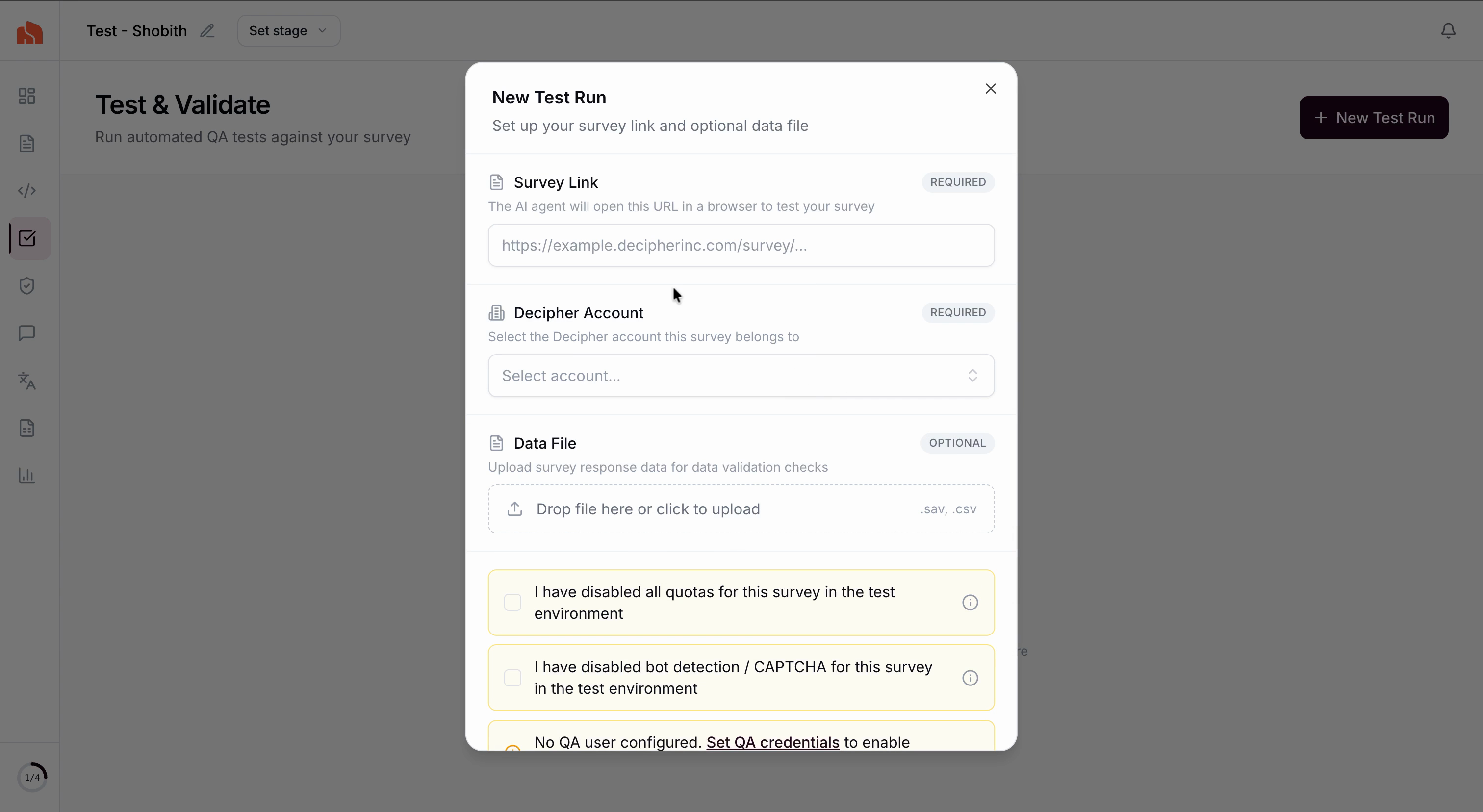
**Step 3:** Enter your survey link and select the **Decipher** instance configured for QA.
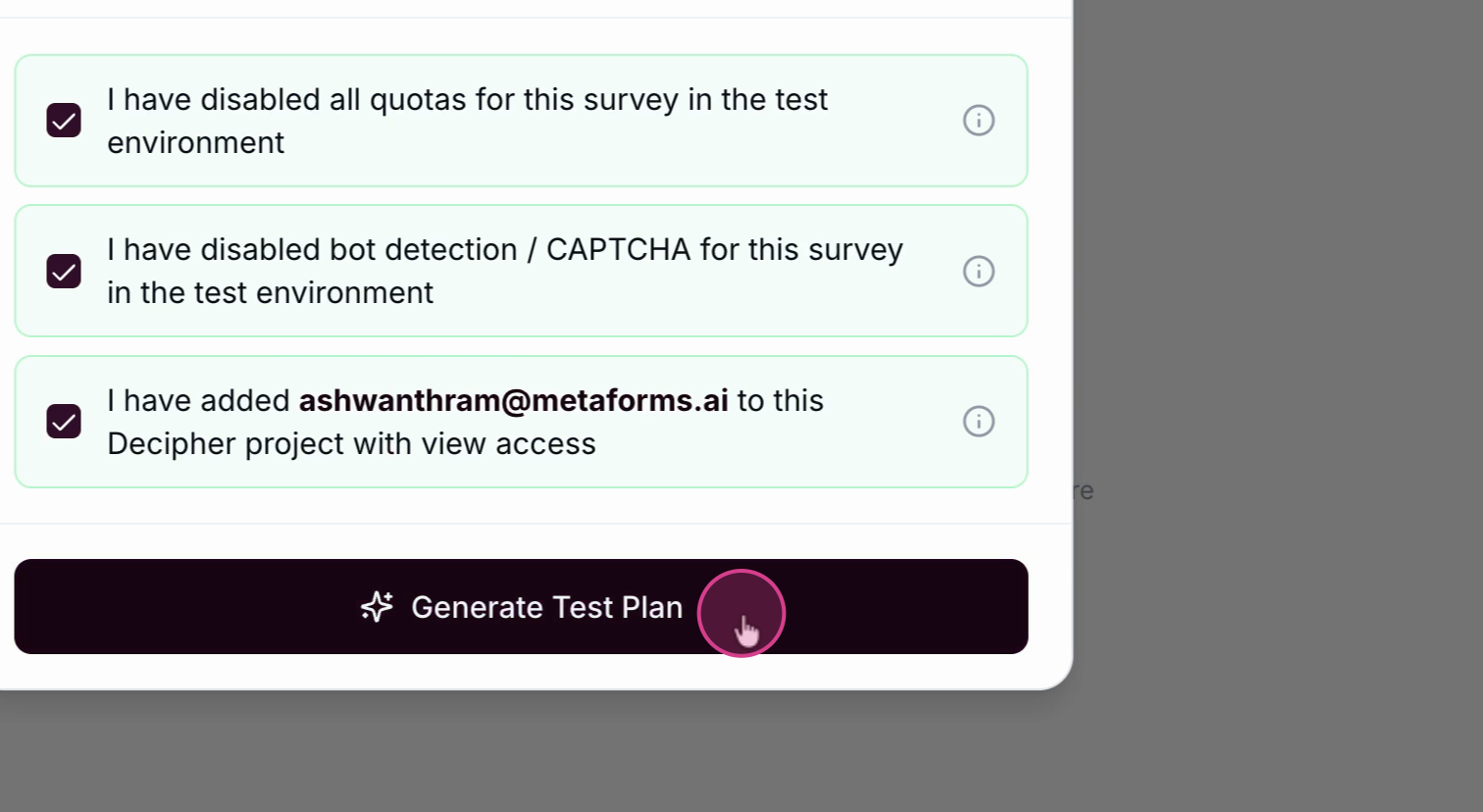
Make sure to perform these actions in Decipher for that specific project and then check the boxes in the dialog.
* Disable all quotas
* Disable bot detection
* Add the QA-specific user in Decipher for this project with Viewer Access
{% hint style="info" %}
Doing this will allow the QA Agent access the Decipher Recorder Tool and hidden variables
{% endhint %}
**Step 4:** Click **Generate Test Plan**.
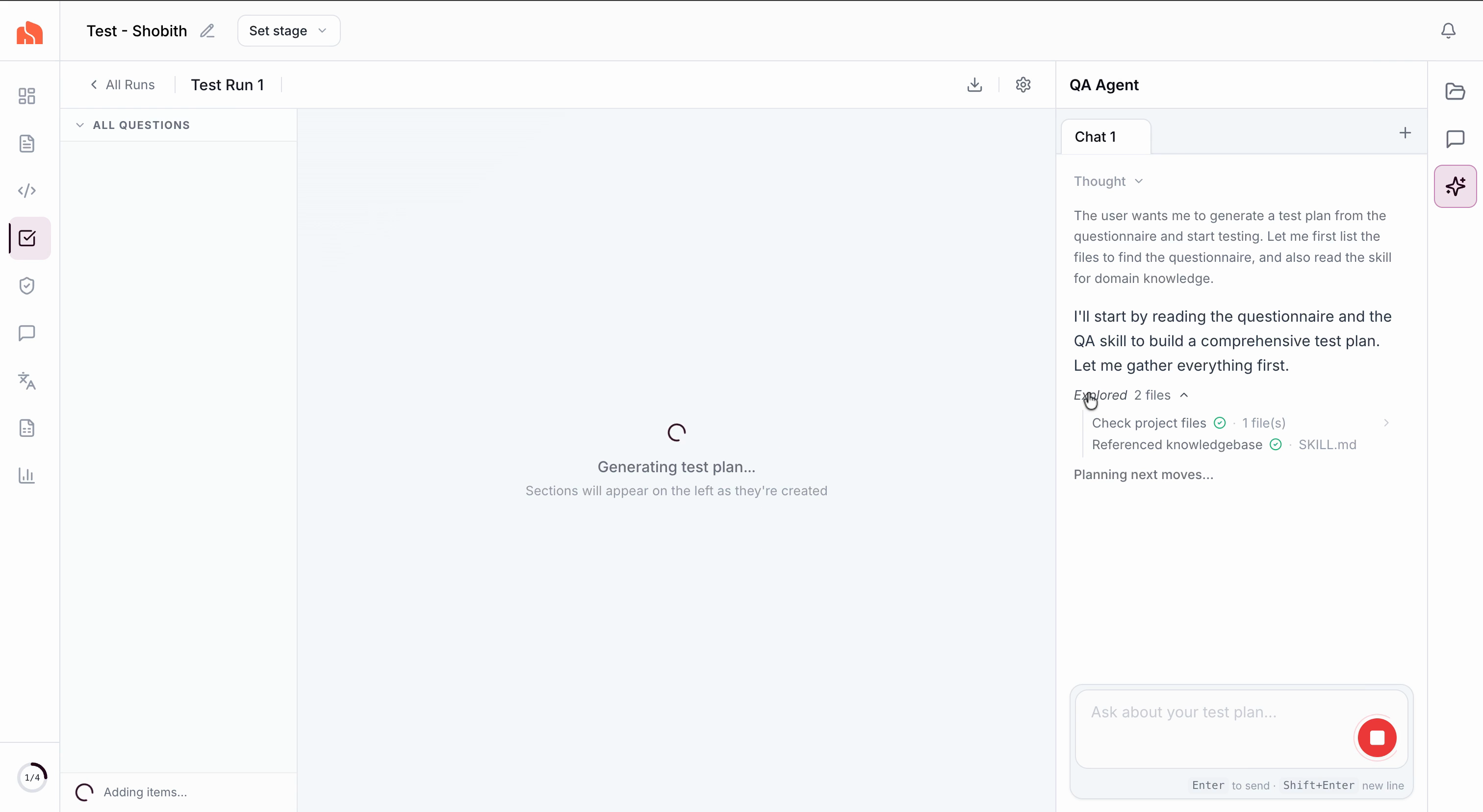
**Step 5:** You’ll see the agent interface on the right as it begins creating your test cases.
**Step 6:** You can review your survey sections on the left. Click any question to see the checks generated for it. Checks include presence, logical, and textual validations for each question.
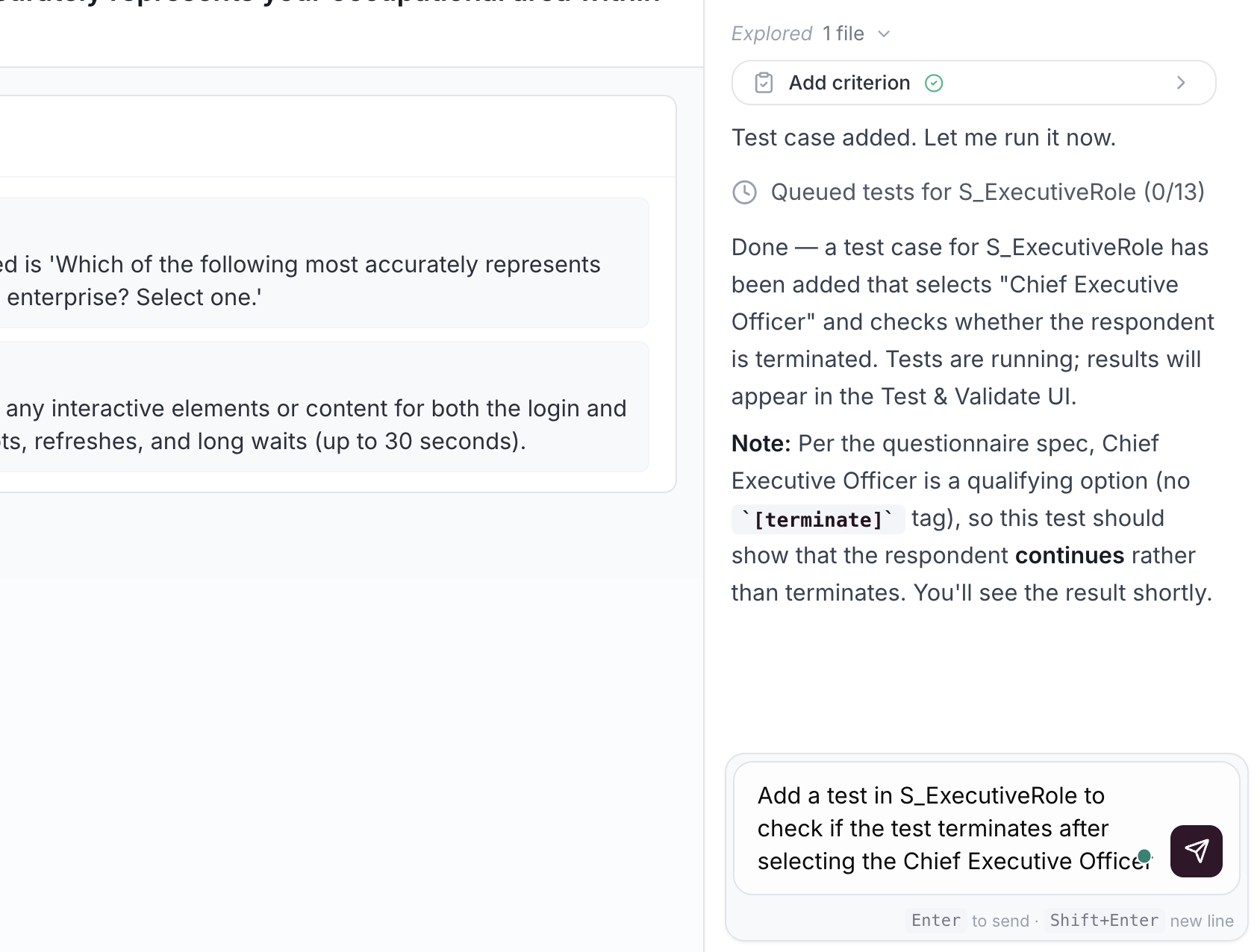
**Step 7:** Need a new test? Type your request in the agent’s chat. The agent confirms when the new test is added.
**Step 8:** Once generated, your tests will run automatically. You’ll get a notification by email when execution finishes.
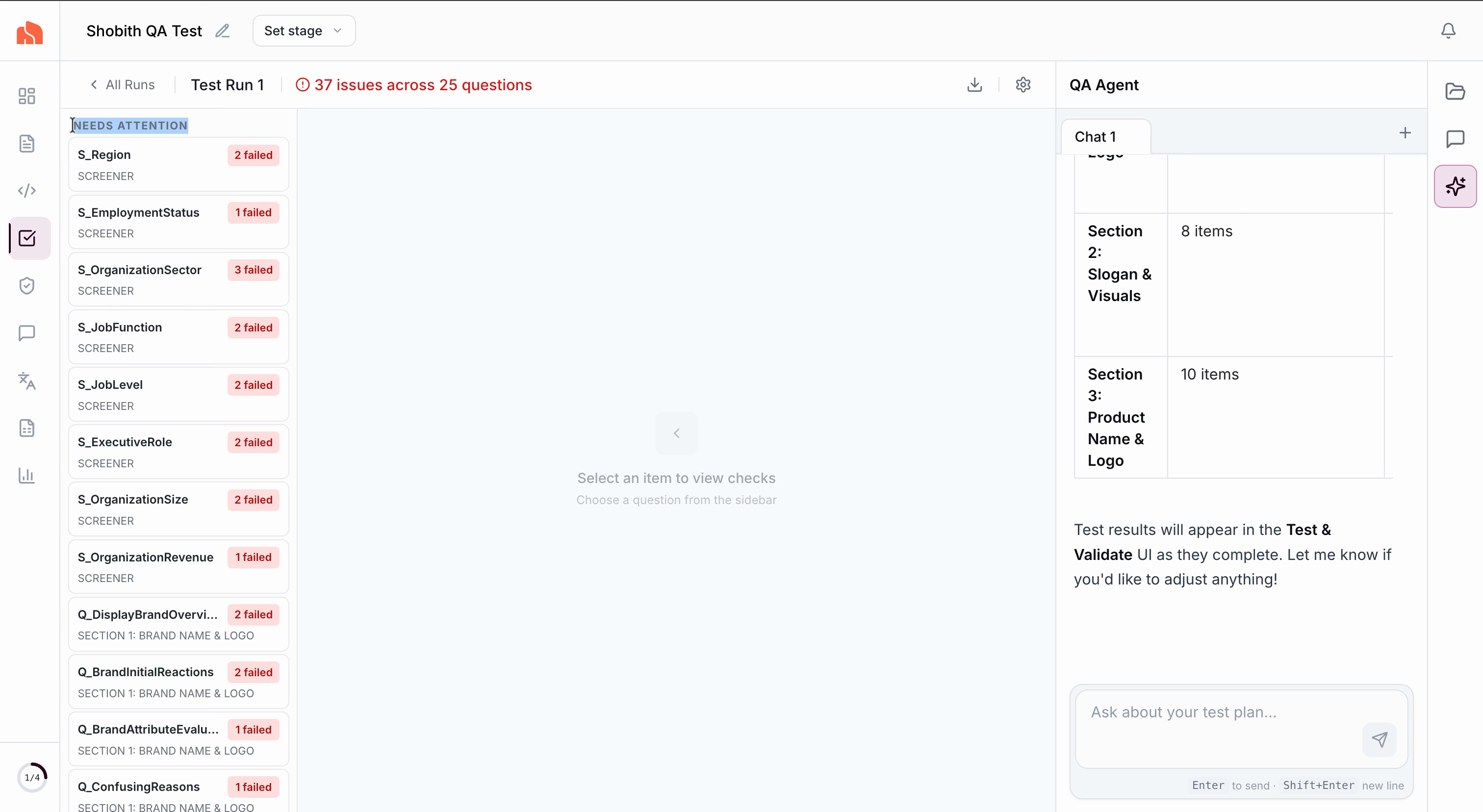
**Step 9:** On completion, you’ll find a **Needs Attention** section that highlights issues detected by the agent.
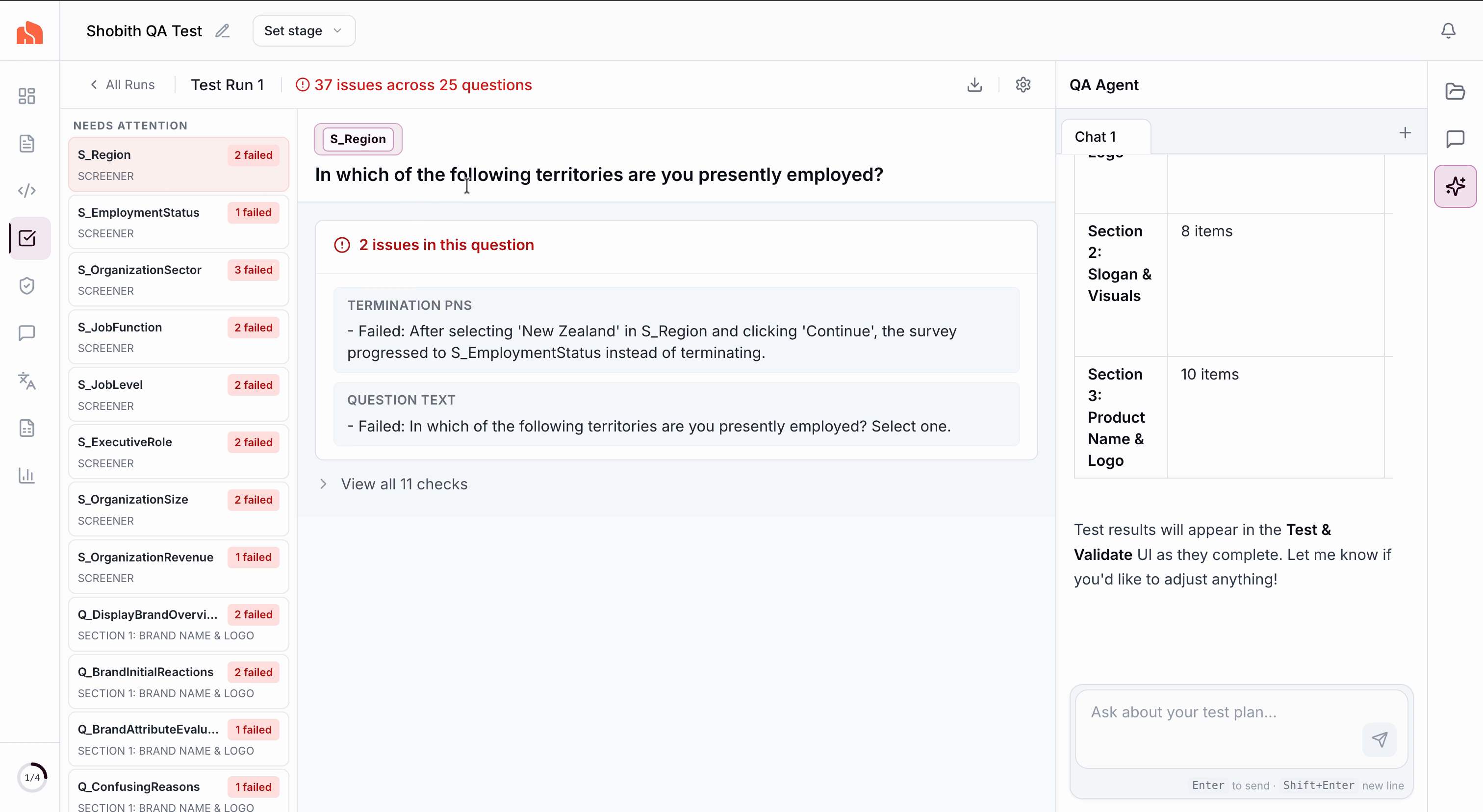
**Step 10:** See the specific question names and the agent’s identified issues with detailed messages.
**Step 11:** You can also click on a question to review all the checks performed by the agent.
For each issue, check the agent’s explanations, which include feedback on formatting, display logic, and more.
**Step 12:** Once reviews are done, click **Export Report**. For a focused summary, choose **Export Failures Only**.
## Retesting Links After Making Changes
After updating your survey, it’s important to re-run your link tests to ensure everything works as expected. The link testing panel gives you flexible options to manage your test runs.
**Step 1:** Open the **link testing panel** and start a **new test run** to check your updated survey.
**Step 2:** If the survey structure hasn't changed, click **Reuse test plan from test one** to save time. If there are major changes, let the AI generate a **new test plan**.
The rest of the testing workflow remains unchanged.
---
# Agent Instructions
This documentation is published with GitBook. GitBook is the documentation platform designed so that both humans and AI agents can read, navigate, and reason over technical content effectively. Learn more at gitbook.com.
## Querying This Documentation
If you need additional information that is not directly available in this page, you can query the documentation dynamically by asking a question.
Perform an HTTP GET request on the current page URL with the `ask` query parameter, and the optional `goal` query parameter:
```
GET https://help.metaforms.ai/qa-testing/run-qa-tests.md?ask=&goal=
```
`ask` is the immediate question: it should be specific, self-contained, and written in natural language.
`goal` is optional and describes the broader end goal you are ultimately trying to accomplish on behalf of the user. GitBook uses it to tailor the answer towards what is most useful for that goal.
The response will contain a direct answer to the question and relevant excerpts and sources from the documentation.
Use this mechanism when the answer is not explicitly present in the current page, you need clarification or additional context, or you want to retrieve related documentation sections.