> For the complete documentation index, see [llms.txt](https://help.metaforms.ai/llms.txt). Markdown versions of documentation pages are available by appending `.md` to page URLs; this page is available as [Markdown](https://help.metaforms.ai/survey-programming-dimensions/templates.md).
# Templates
### What Are Survey Programming Templates?
Templates are reusable survey shells that help you standardize project structure and speed up new project creation. A template contains your starter metadata and routing code — the boilerplate that every project of a particular type needs — along with any linked AI Rule folders that should be applied by default.
Instead of writing the same base scripts from scratch every time, you define them once in a template and select it when initializing a new project. Templates allow you to build on top of MetaForms' baseline intelligence with your own custom logic, helping standardize survey structure across teams and clients.
**A Survey Programming Template includes:**
* Starter metadata code
* Starter routing code
* Linked AI Rule folders (optional)
***
### Getting Started
Navigate to the **Templates** section under the **Build** tab to view, create, and manage your survey programming templates.

***
### Creating a Template
**Step 1:** Click **New Template**.

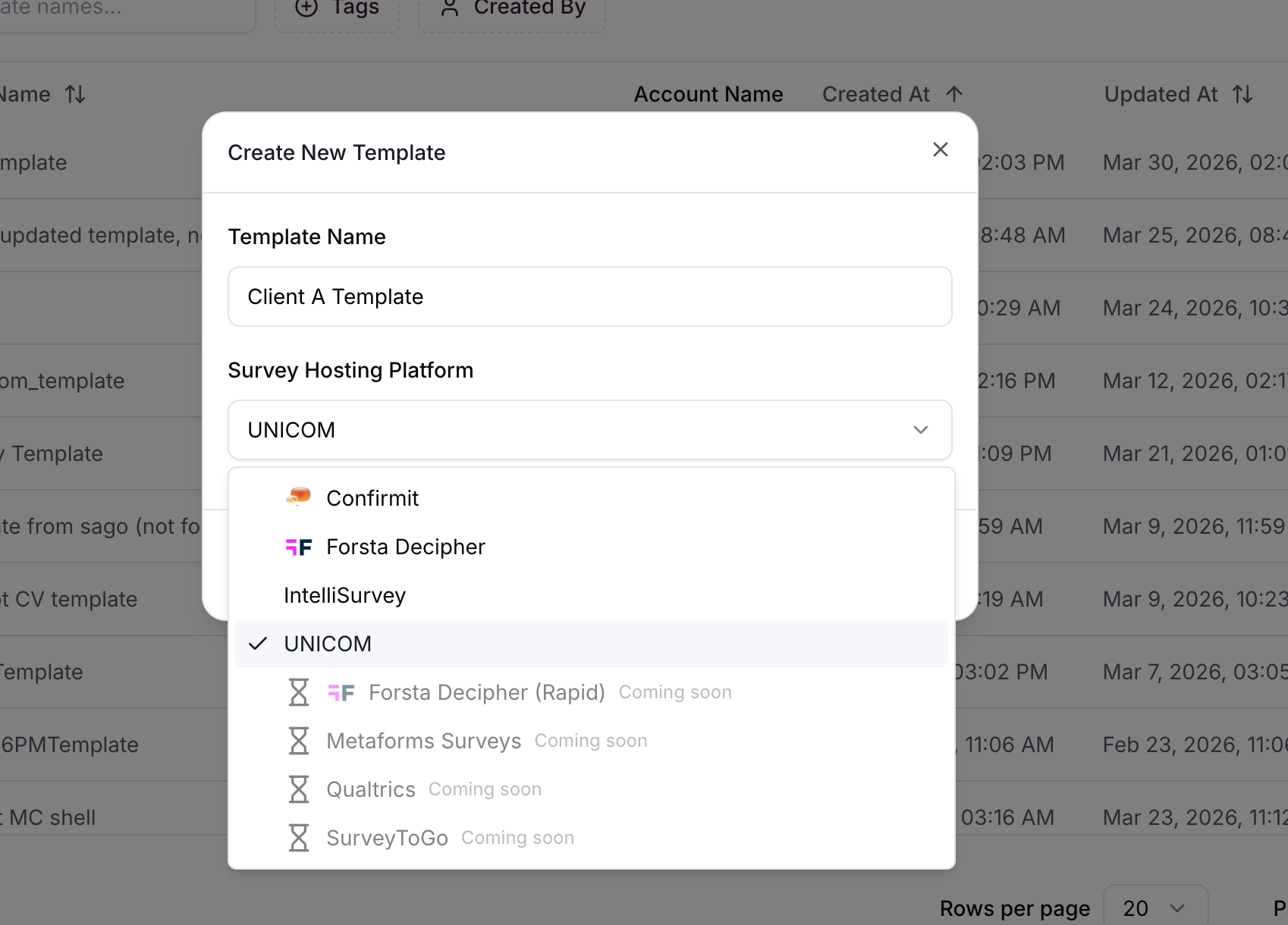
**Step 2:** Enter a descriptive name for your template. Use a name that reflects the team, client, or project type it's designed for — for example, "Client A - Standard Tracker" or "CATI Team Template." This makes it easy for programmers to pick the right template when starting a new project.
Choose Unicom as the Survey Hosting Platform.
**Step 3:** Select your **Survey Hosting Platform** (e.g., Unicorn) and click **Create Template**.
***
### Adding Starter Code
**Step 4:** After creation, you'll see fields to add our started code. Paste your desired metadata and routing starter code into these fields. This is the boilerplate shell that will be pre-loaded into every project that uses this template — things like standard variable definitions, common routing blocks, or shared includes.

**Step 5:** Click **Save Changes** to store your template.

***
### Linking AI Rules to a Template
You can link AI Rule folders to a template so that the relevant rules are automatically pre-selected whenever someone creates a project using this template. This ensures the AI agent follows the right programming conventions from the start.
**Step 6:** Click the **Link AI Rules** option at the top of the template editor.

**Step 7:** Select the AI Rule folders you want to associate with this template and click **Save Changes**.
***
### Using a Template in a New Project
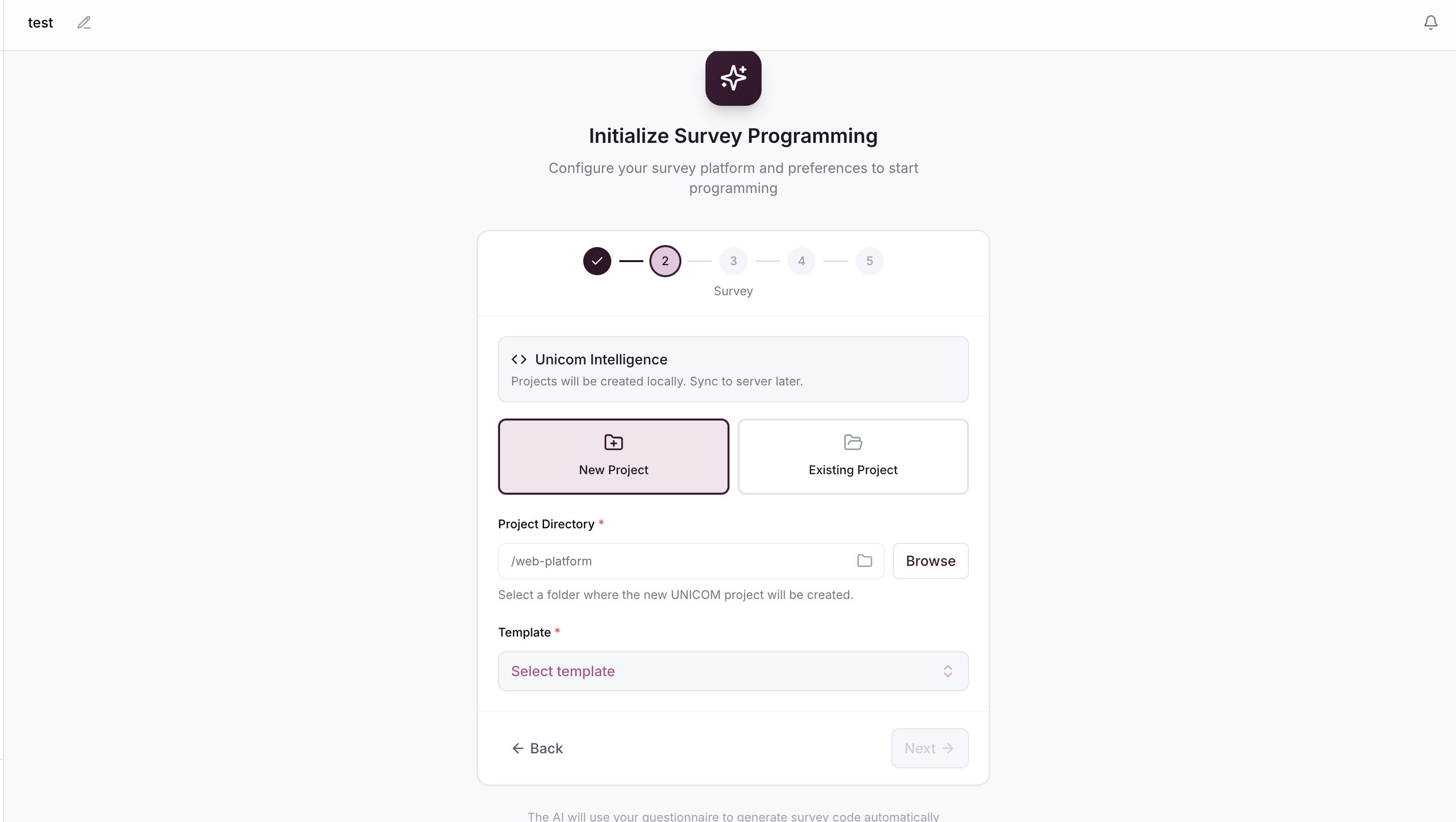
When you create a new project and navigate to the **Programming** tab, you'll go through a setup wizard before entering the programming interface. During this initialization:
**Step 1:** When prompted, select the template you want to use. Your starter code will be pre-loaded into the project.
**Step 2:** On the AI Rules screen, any folders linked to the selected template will be automatically pre-selected. You can still check or uncheck additional "If Selected" folders as needed before proceeding.
The project will then open with your starter code already in place and the AI agent configured with the linked rules — ready to start programming.
---
# Agent Instructions
This documentation is published with GitBook. GitBook is the documentation platform designed so that both humans and AI agents can read, navigate, and reason over technical content effectively. Learn more at gitbook.com.
## Querying This Documentation
If you need additional information that is not directly available in this page, you can query the documentation dynamically by asking a question.
Perform an HTTP GET request on the current page URL with the `ask` query parameter, and the optional `goal` query parameter:
```
GET https://help.metaforms.ai/survey-programming-dimensions/templates.md?ask=&goal=
```
`ask` is the immediate question: it should be specific, self-contained, and written in natural language.
`goal` is optional and describes the broader end goal you are ultimately trying to accomplish on behalf of the user. GitBook uses it to tailor the answer towards what is most useful for that goal.
The response will contain a direct answer to the question and relevant excerpts and sources from the documentation.
Use this mechanism when the answer is not explicitly present in the current page, you need clarification or additional context, or you want to retrieve related documentation sections.