> For the complete documentation index, see [llms.txt](https://help.metaforms.ai/llms.txt). Markdown versions of documentation pages are available by appending `.md` to page URLs; this page is available as [Markdown](https://help.metaforms.ai/reports/reporting-templates.md).
# Reporting Templates
### Presentation templates
Reporting templates let you upload PowerPoint (`.pptx`) files so they can be reused when creating new chart decks. The system parses each slide, extracts colours and fonts into a theme, and generates thumbnails — all automatically.
### Where to find templates
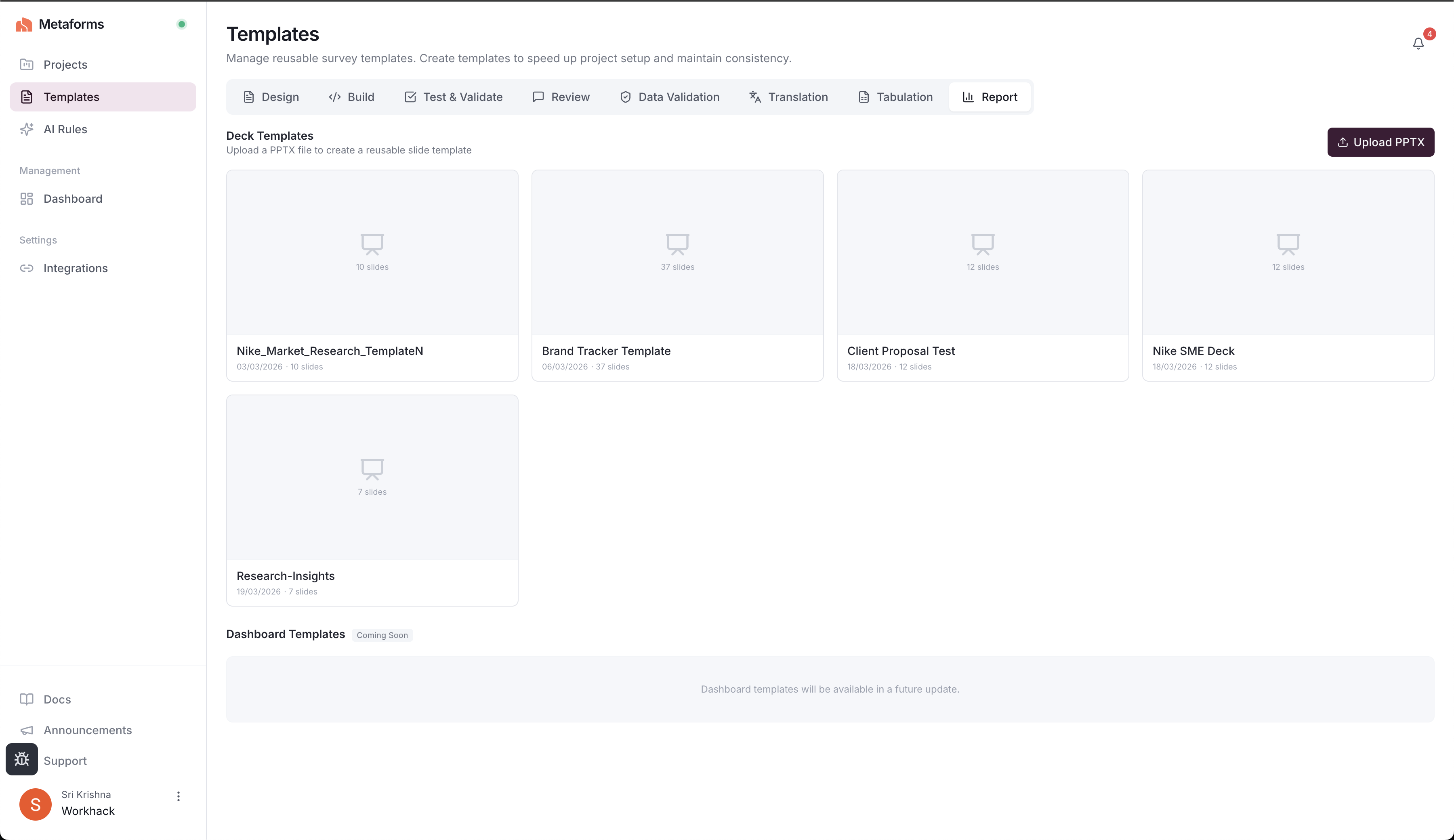
Navigate to **Templates > Report** from the main sidebar. This is an organisation-level page, so every template you upload is available to all projects within your org.
### Uploading a template
1. Click **Upload PPTX** in the top-right corner.
2. Fill in the upload dialog:
| Field | Description |
| ----------------- | ---------------------------------------------------------- |
| **Template Name** | A friendly name (defaults to the file name if left blank). |
| **PPTX File** | Click the drop zone or browse for a `.pptx` file. |
3. Click **Upload & Process**.
Processing happens asynchronously — the template card shows a spinner and a status message while the backend parses slides, extracts theme colours, and generates thumbnails. Once processing finishes, the card updates to show the first-slide thumbnail and a slide count.
{% hint style="warning" %}
If processing fails (e.g. a corrupted or password-protected file), the card displays an error state. You can delete it and try again with a different file.
{% endhint %}
### Template cards
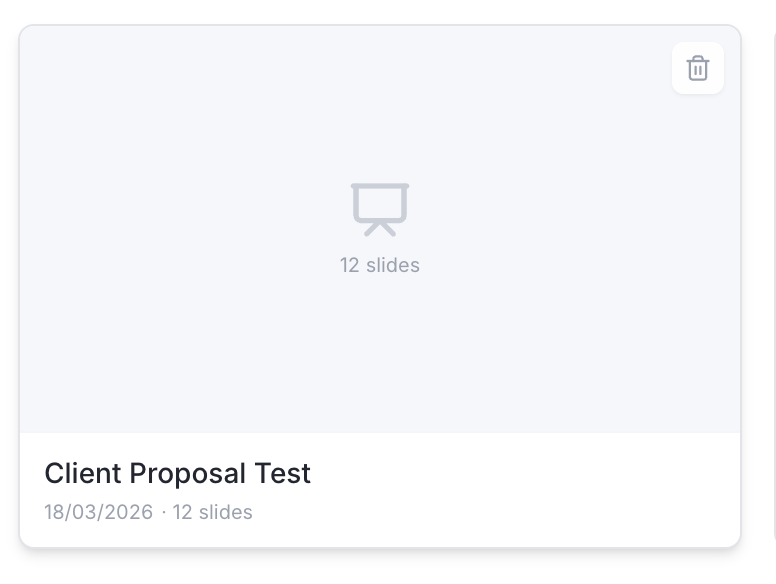
Each template appears as a card in a responsive grid. A card shows:
* A **thumbnail** of the first slide (or a slide-count indicator if no thumbnail is available).
* The **template name** and **creation date**.
* A **delete button** (appears on hover).
Click a card to open the **Template Editor**.
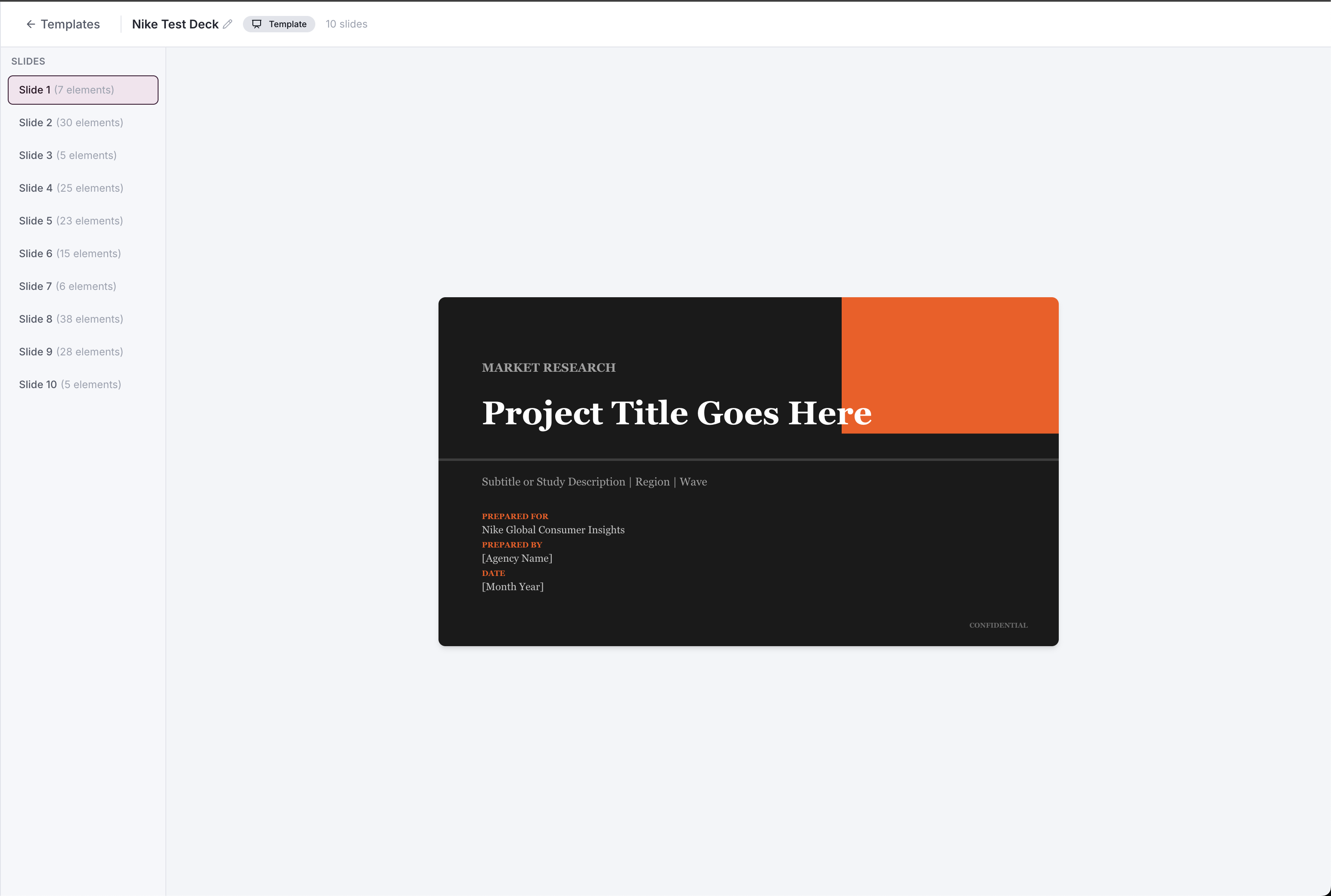
### Template Viewer
Clicking a completed template opens a read-only interface where you can:
* **Browse slides** — a vertical slide list on the left lets you click through each slide in the template.
* **Preview slides** — the centre panel renders a full-size preview of the selected slide, showing element positions, shapes, charts, images, and text.
* **Rename the template** — click the template name in the top bar to edit it inline.
The editor also shows a **Template** badge and the total slide count.
### Using templates when creating a deck
Templates appear in two places during deck creation:
#### 1. "Template" mode in the creation wizard
In **Step 4 — Choose How to Start**, selecting **Template** opens a grid of all available templates. Pick one, then tell the AI how to use it:
* *Use the design system only* — apply the template's colours and fonts but generate fresh content.
* *Import both slides and content* — clone the template as-is.
You can also type a custom instruction.
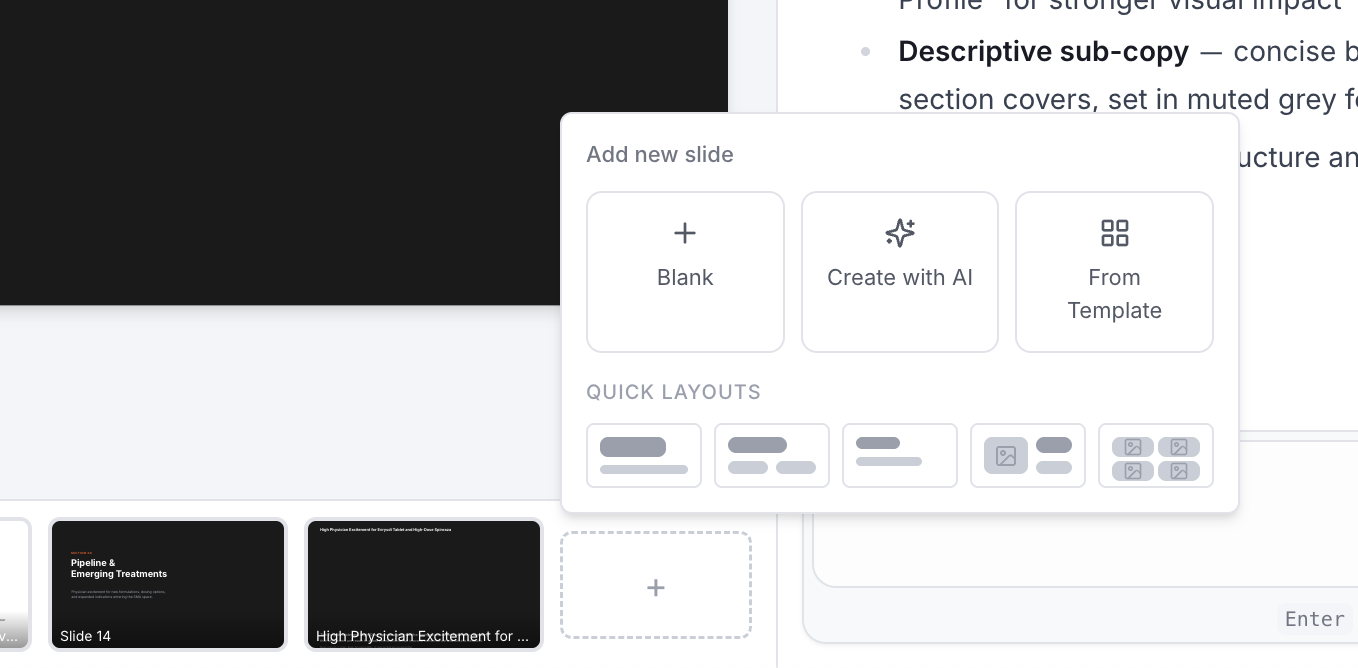
#### 2. "From Template" in the Add Slide menu
While editing an existing deck, click the **+** button in the slide filmstrip and choose **From Template**. This opens a two-step picker:
1. **Choose a template** — browse available templates (with thumbnails).
2. **Choose a slide** — view all slides in the selected template, then click one to import it into your deck.
### Dashboard templates
A **Dashboard Templates** section is shown below Deck Templates on the Report templates page. This is marked as *Coming Soon* and will be available in a future update.
---
# Agent Instructions
This documentation is published with GitBook. GitBook is the documentation platform designed so that both humans and AI agents can read, navigate, and reason over technical content effectively. Learn more at gitbook.com.
## Querying This Documentation
If you need additional information that is not directly available in this page, you can query the documentation dynamically by asking a question.
Perform an HTTP GET request on the current page URL with the `ask` query parameter, and the optional `goal` query parameter:
```
GET https://help.metaforms.ai/reports/reporting-templates.md?ask=&goal=
```
`ask` is the immediate question: it should be specific, self-contained, and written in natural language.
`goal` is optional and describes the broader end goal you are ultimately trying to accomplish on behalf of the user. GitBook uses it to tailor the answer towards what is most useful for that goal.
The response will contain a direct answer to the question and relevant excerpts and sources from the documentation.
Use this mechanism when the answer is not explicitly present in the current page, you need clarification or additional context, or you want to retrieve related documentation sections.