> For the complete documentation index, see [llms.txt](https://help.metaforms.ai/llms.txt). Markdown versions of documentation pages are available by appending `.md` to page URLs; this page is available as [Markdown](https://help.metaforms.ai/qa-testing/setting-up-qa-credentials.md).
# Setting up QA Credentials
Metaforms' AI-powered QA module automates survey link testing. It reads a questionnaire, generates a structured test plan, and executes test cases against the live survey link using browser automation — replacing the manual click-through process that QA testers do today.
{% hint style="warning" %}
It is recommended to create **one** dedicated Decipher account for QA testing for each Decipher Instance. These credentials are used exclusively for QA runs and are never shared externally.
{% endhint %}
### Prerequisites
Before setting up QA credentials, you’ll first need to connect your Decipher account to Metaforms. Refer to this guide to setup the connection: [Connect Metaforms to Decipher](/survey-programming-decipher/unified-flow/connect-metaforms-to-decipher.md)
### How to Set Up QA Credentials for Decipher Surveys
Setting up a dedicated QA credential and the right project permissions helps Metaforms' QA agent to fully test all aspects of your Decipher surveys, including accessing all hidden variables in a Decipher survey.
Follow these steps to set up credentials and assign the proper permissions for seamless QA testing.
**Step 1:** Go to your **Decipher** dashboard and navigate to the **Company** page.

**Step 2:** Under **Users**, click to create a new user.

**Step 3:** Enter the user's email address and leave other fields untouched.

**Step 4:** Click **Create User**. This user doesn't need special access at this point.

{% hint style="info" %}
The next steps can only be done by a user with Administrator access on Metaforms
{% endhint %}
**Step 5:** Go back to the Manager's Dashboard
**Step 6:** Under **Integrations,** select your Decipher instance and navigate to **QA Credentials.**
**Step 7: E**nter the credentials for the user you created on Decipher, then click Save.
**Step 8:** You should see a confirmation message that your credentials have been saved.
### Assign QA Access to a Project
Every time you create a new Decipher project or sync a project from Metaforms, grant the QA account access at the project level.
**Step 1:** In your Decipher dashboard, select the project you want the QA agent to test.

**Step 2:** Click Users, then select Add User or Group.

**Step 3:** Search for the QA account you created earlier.

**Step 4:** Assign **View Only** permission to this account.
**Step 5:** Click **Add Users**.

### Testing the Survey With QA Credentials
After assigning project-level permissions,
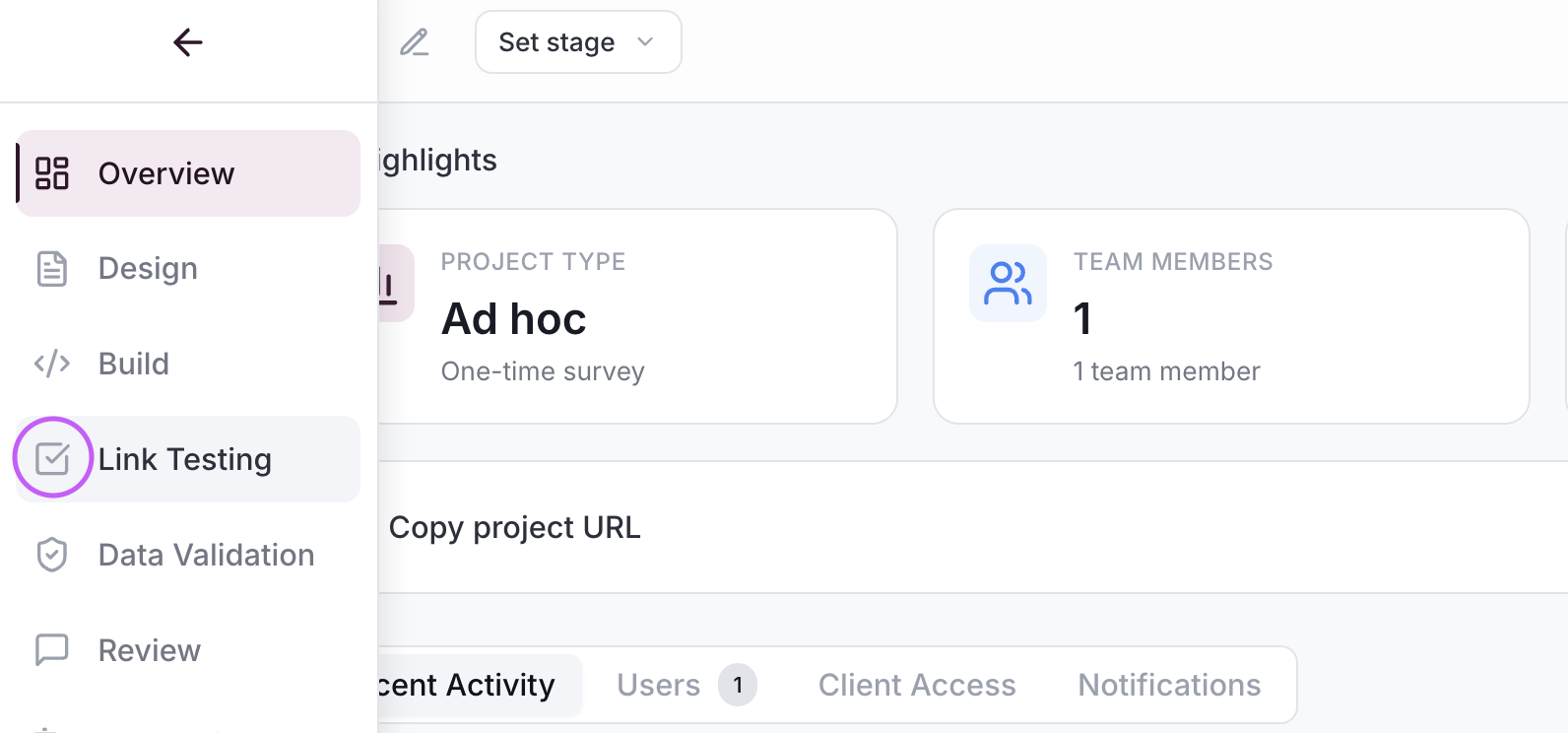
**Step 1:** Go to the specific project on Metaforms and select **Link Testing**.
**Step 2:** Click on **Start** to generate the test plan.

**Step 3:** In the dialog box, enter the survey link provided by Decipher.

**Step 4:** Confirm the correct QA-configured Decipher account is active (it should be marked as QA configured).

**Step 5:** Before testing, make sure to disable all quotas and turn off bot detection or CAPTCHA in your survey's settings.
**Step 6:** Confirm you have given the QA account view access to the project.

**Step 7:** Click **Generate Test Plan** to start the QA process.

---
# Agent Instructions
This documentation is published with GitBook. GitBook is the documentation platform designed so that both humans and AI agents can read, navigate, and reason over technical content effectively. Learn more at gitbook.com.
## Querying This Documentation
If you need additional information that is not directly available in this page, you can query the documentation dynamically by asking a question.
Perform an HTTP GET request on the current page URL with the `ask` query parameter, and the optional `goal` query parameter:
```
GET https://help.metaforms.ai/qa-testing/setting-up-qa-credentials.md?ask=&goal=
```
`ask` is the immediate question: it should be specific, self-contained, and written in natural language.
`goal` is optional and describes the broader end goal you are ultimately trying to accomplish on behalf of the user. GitBook uses it to tailor the answer towards what is most useful for that goal.
The response will contain a direct answer to the question and relevant excerpts and sources from the documentation.
Use this mechanism when the answer is not explicitly present in the current page, you need clarification or additional context, or you want to retrieve related documentation sections.