> For the complete documentation index, see [llms.txt](https://help.metaforms.ai/llms.txt). Markdown versions of documentation pages are available by appending `.md` to page URLs; this page is available as [Markdown](https://help.metaforms.ai/survey-programming-qualtrics/metaforms-chrome-extension-qualtrics-guide/using-metaforms-step-by-step.md).

# Using Metaforms: Step-by-Step

#### 1. Log in to Qualtrics

* Open Qualtrics in Chrome and log in with your usual account.

#### 2. Log in to Metaforms

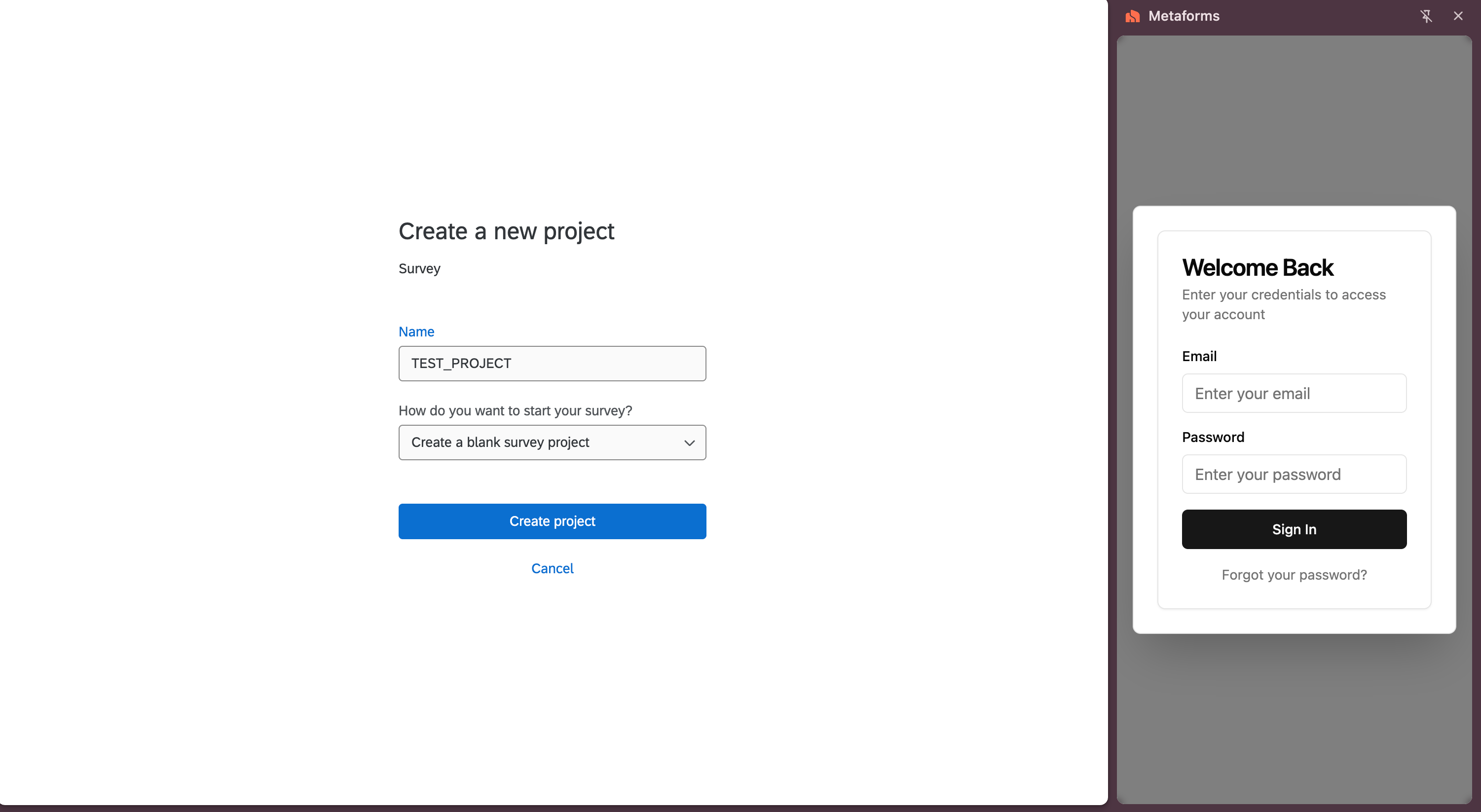
* Click the Metaforms icon to open the extension.

<figure><img src="https://usercontent.in.prod.clueso.io/743138ba-7933-4a1a-90b2-26ddeb90ccbd/cfa953b9-d54c-4080-8ea4-6c099b757065/7a497ea6-cea3-4796-adae-f4cd3ce96e11/images/62fb71fa-984c-40c9-b352-8fa1f8d17fd7.png" alt="Open the Metaforms extension"><figcaption></figcaption></figure>

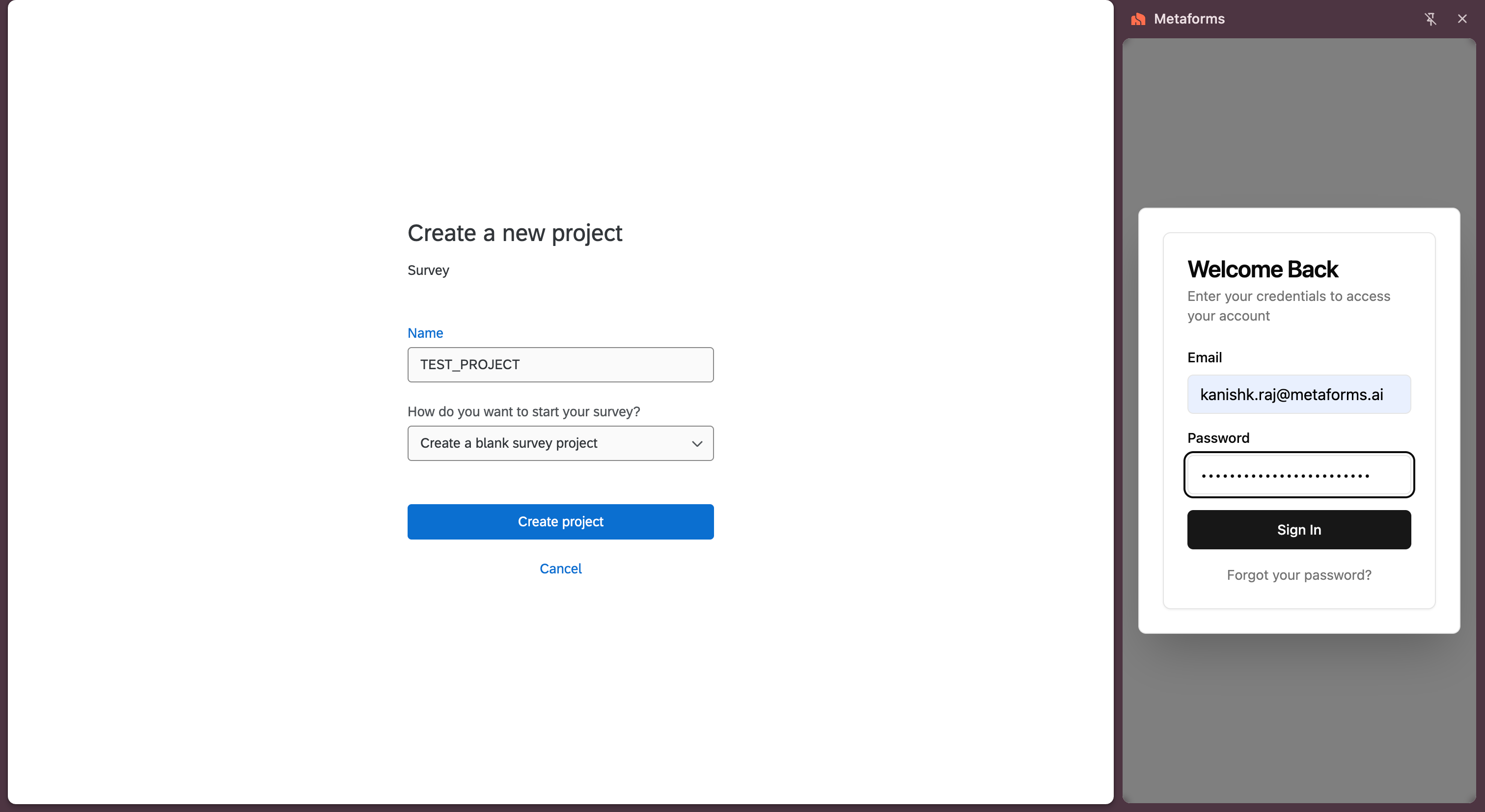
* Sign in with your Metaforms credentials.

<figure><img src="https://usercontent.in.prod.clueso.io/743138ba-7933-4a1a-90b2-26ddeb90ccbd/cfa953b9-d54c-4080-8ea4-6c099b757065/7a497ea6-cea3-4796-adae-f4cd3ce96e11/images/2b4990eb-f80e-4e1e-8708-b19a5fff84a3.png" alt="Log in with Metaforms credentials"><figcaption></figcaption></figure>

#### 3. Configure your Qualtrics URLs

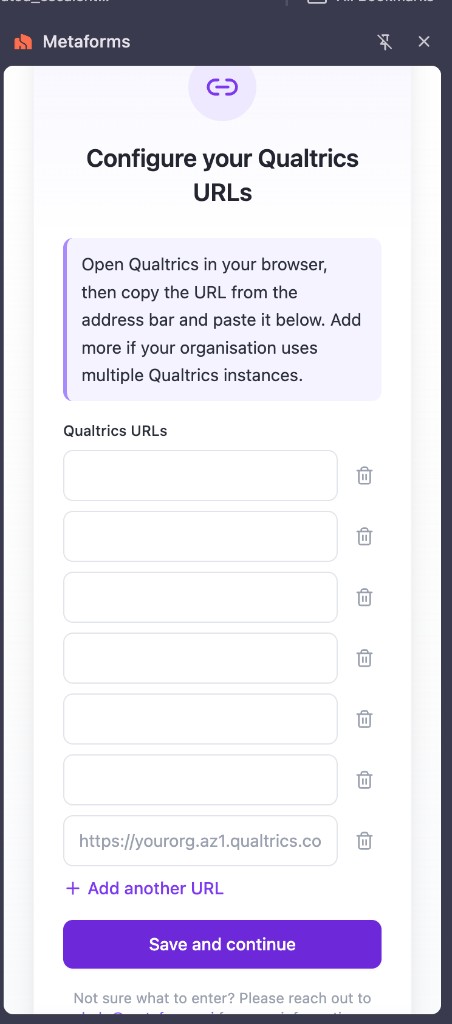
The first time you log in, Metaforms asks for your Qualtrics URLs. The extension works only on the Qualtrics URLs added here.

* Copy the URL from the Qualtrics address bar and paste it into **Qualtrics URLs**, for example `https://yourorg.az1.qualtrics.com`.
* If your organization uses more than one Qualtrics instance, click **Add another URL** and paste each one.
* Click **Save and continue**.

<figure><img src="https://1402057010-files.gitbook.io/~/files/v0/b/gitbook-x-prod.appspot.com/o/spaces%2FgtHd8o9ldznZ1hKHiZvc%2Fuploads%2Fgit-blob-fea70677b654a2d7a4a3e0d2b8c0cfbff9bf7c57%2Fqualtrics-configure-urls.png?alt=media" alt="Configure your Qualtrics URLs in the Metaforms extension" width="320"><figcaption></figcaption></figure>

#### 4. Open the Qualtrics survey

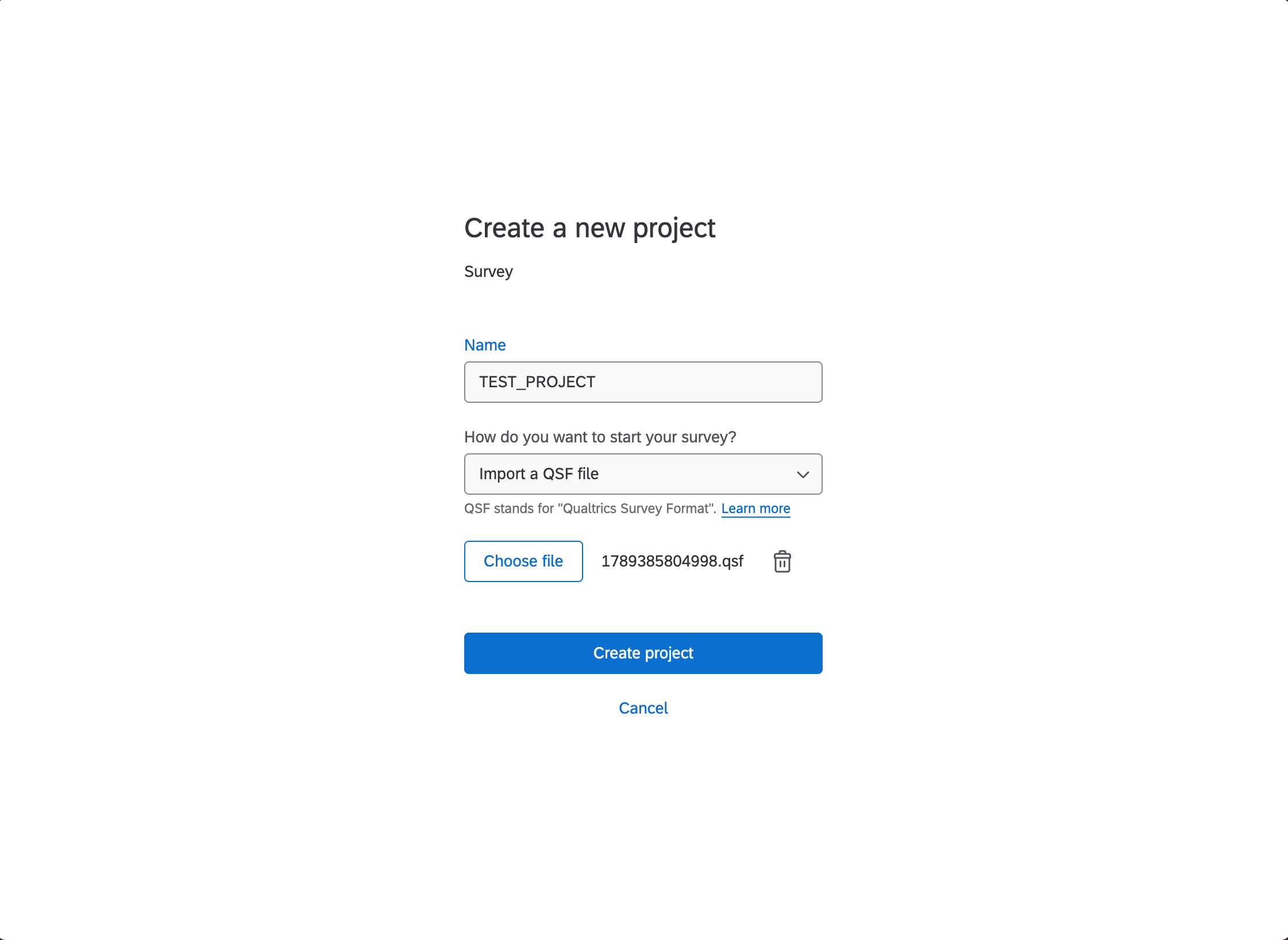
* In Qualtrics, create a new project, or upload the QSF file for the survey you want to program.

<figure><img src="https://usercontent.in.prod.clueso.io/743138ba-7933-4a1a-90b2-26ddeb90ccbd/cfa953b9-d54c-4080-8ea4-6c099b757065/7a497ea6-cea3-4796-adae-f4cd3ce96e11/images/270cca8e-e2eb-4ed3-951a-551c3f56f2b0.png" alt="Create a project or upload a QSF file"><figcaption></figcaption></figure>

* Keep that survey open. The extension detects the Qualtrics page when its URL has been added.

#### 5. Enter the project details

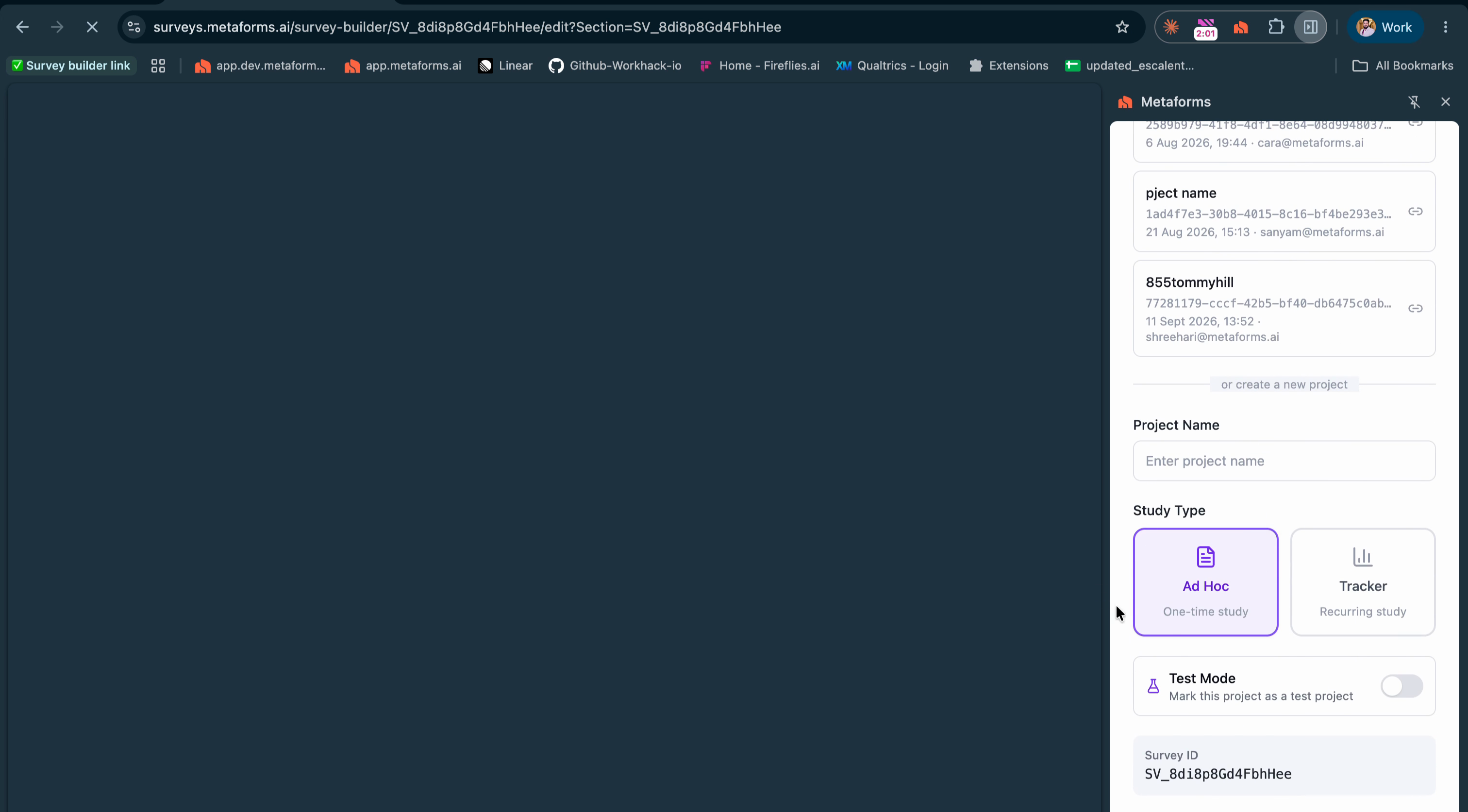
* After the survey is open, the extension asks for the project name and study type.
* Select **Ad Hoc**.
* Select test mode if this project should run in test mode.

<figure><img src="https://usercontent.in.prod.clueso.io/743138ba-7933-4a1a-90b2-26ddeb90ccbd/cfa953b9-d54c-4080-8ea4-6c099b757065/7a497ea6-cea3-4796-adae-f4cd3ce96e11/images/b833e956-75ef-45ef-8d4b-43a5011c85fb.png" alt="Project name and study type prompt"><figcaption></figcaption></figure>

#### 6. Create the project in Metaforms

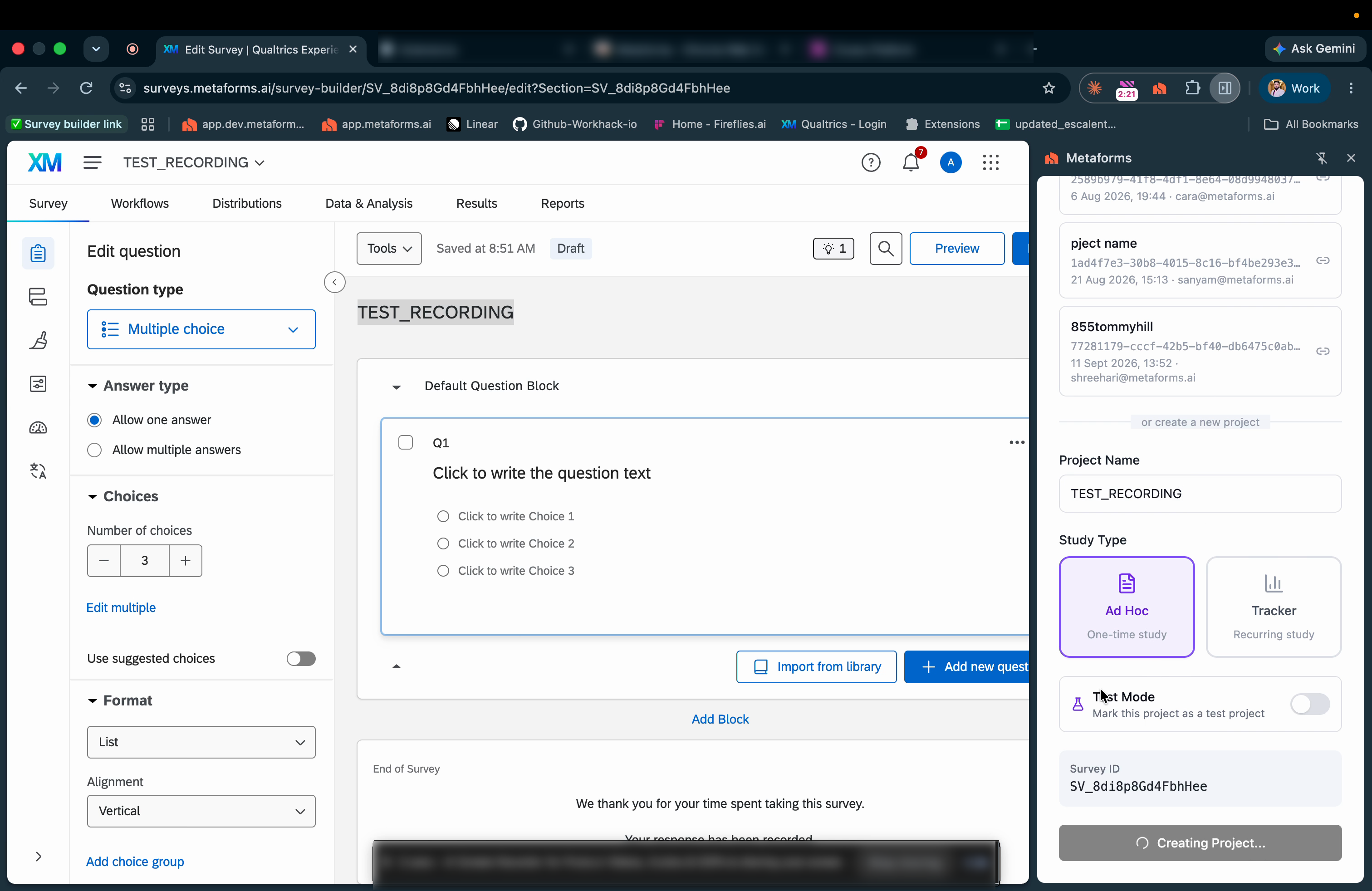
* Enter the same project name you used in Qualtrics.
* Leave the study type as **Ad Hoc**, then click **Create Project**.

<figure><img src="https://usercontent.in.prod.clueso.io/743138ba-7933-4a1a-90b2-26ddeb90ccbd/cfa953b9-d54c-4080-8ea4-6c099b757065/7a497ea6-cea3-4796-adae-f4cd3ce96e11/images/e7dd2a98-fff0-44fb-a96e-977f7ad1385e.png" alt="Create Project in the Metaforms extension"><figcaption></figcaption></figure>

#### 7. Choose AI rules and upload the questionnaire

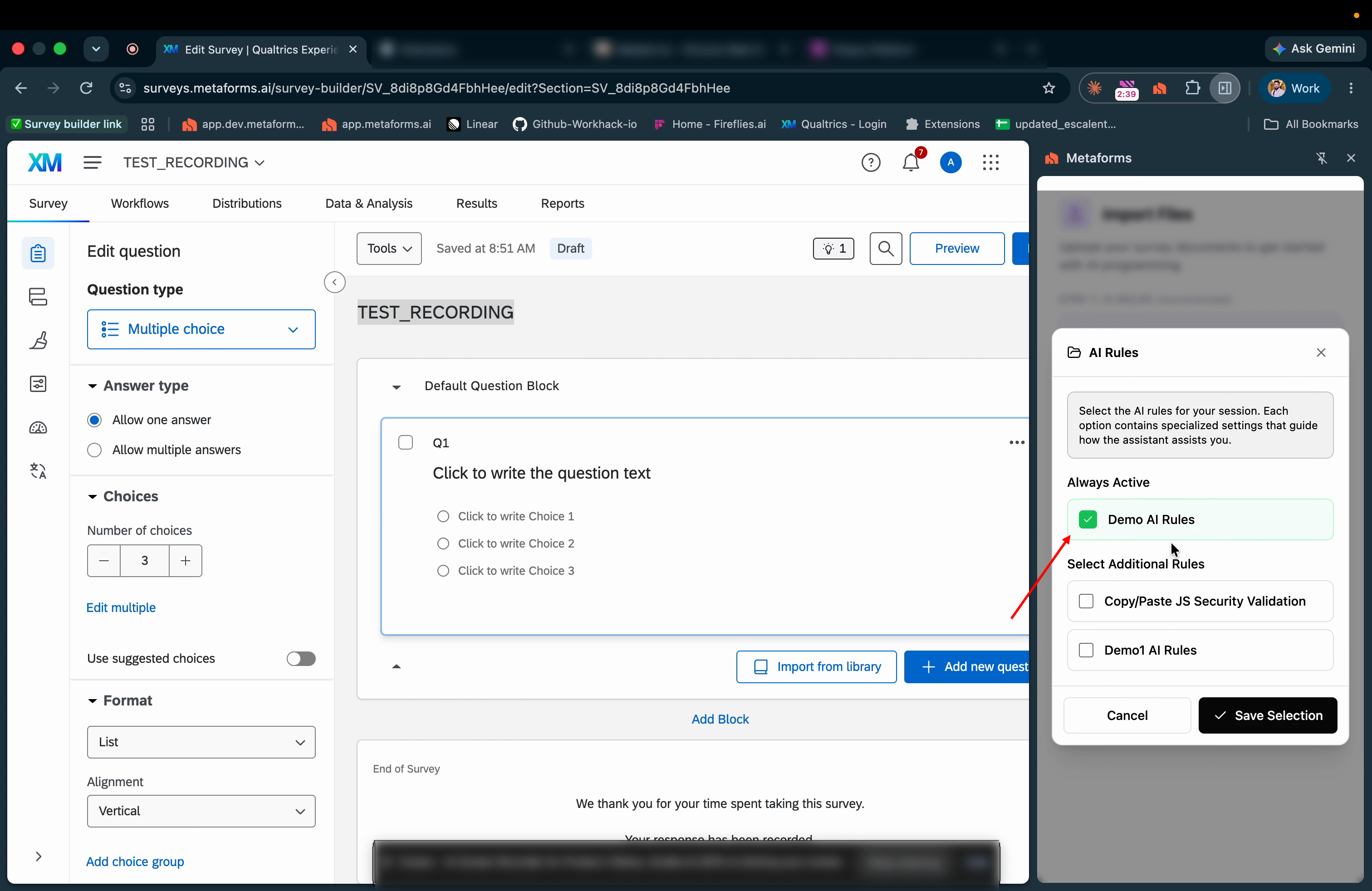
* Choose whether to apply AI rules to this project.

<figure><img src="https://usercontent.in.prod.clueso.io/743138ba-7933-4a1a-90b2-26ddeb90ccbd/cfa953b9-d54c-4080-8ea4-6c099b757065/7a497ea6-cea3-4796-adae-f4cd3ce96e11/images/34a364b5-76e9-4b55-be38-ecf859395b00.png" alt="Choose whether to apply AI rules"><figcaption></figcaption></figure>

Use an AI rule when Metaforms should follow the same programming standard on every question. A rule is a standing requirement, not a one-time edit.

Example standard: “For all single-select questions, include a ‘Prefer not to answer’ option unless the client specifically excludes it.”

If you already have standards written down, email the explanation to <help@metaforms.ai>. The Metaforms team can add the rule for you. If you do not need a rule for this project, continue to the questionnaire upload.

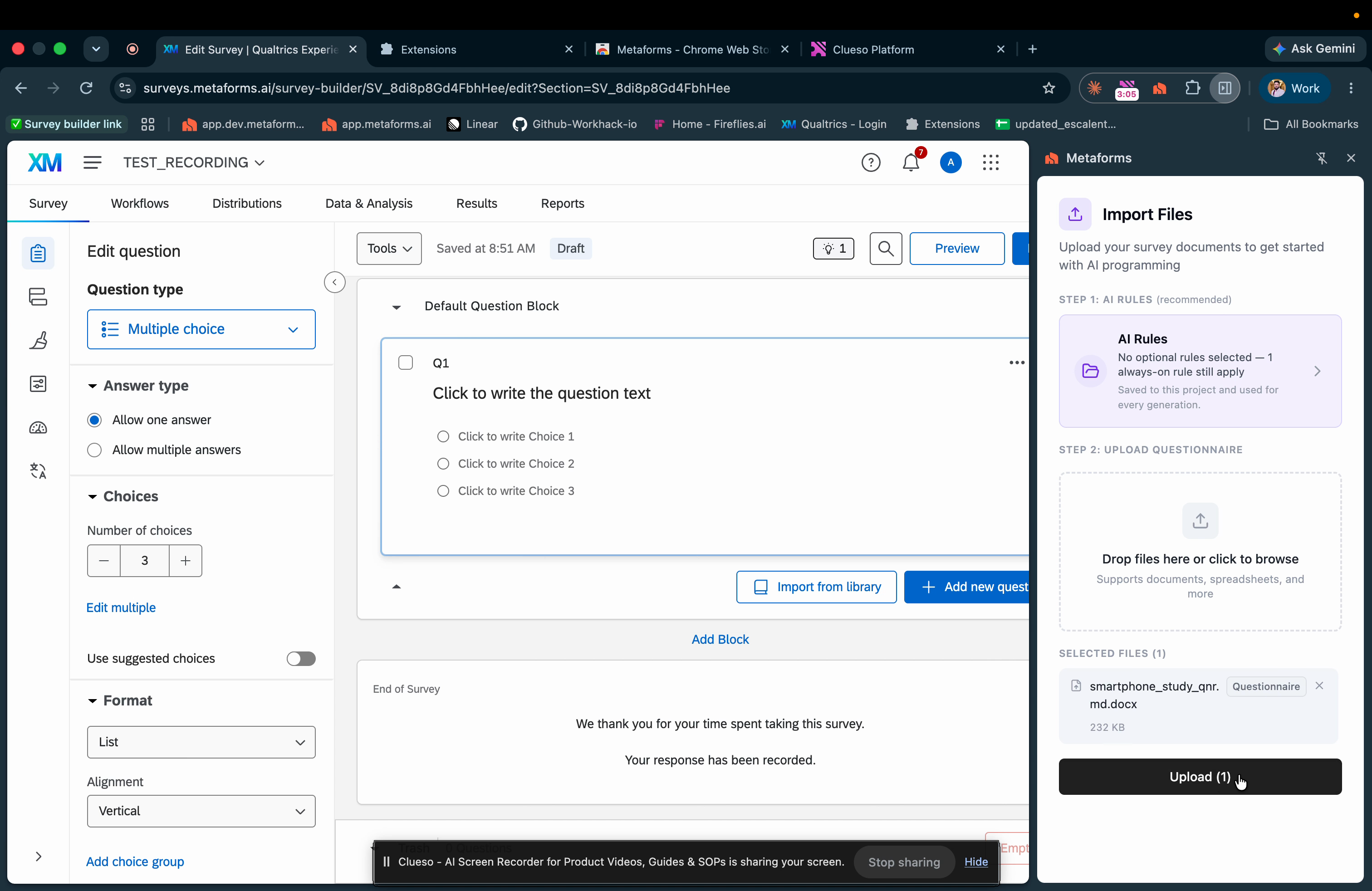
* If you haven't uploaded a template QSF, Qualtrics starts with one block that contains a single-select question. In the extension, upload the questionnaire Metaforms should program.
* Supported file types are `.doc`, `.docx`, `.xls`, `.xlsx`, and `.pdf`.

<figure><img src="https://usercontent.in.prod.clueso.io/743138ba-7933-4a1a-90b2-26ddeb90ccbd/cfa953b9-d54c-4080-8ea4-6c099b757065/7a497ea6-cea3-4796-adae-f4cd3ce96e11/images/30e9a6eb-80db-408b-b45a-e7ff280491c7.png" alt="Upload the questionnaire"><figcaption></figcaption></figure>

#### 8. Generate the first questions

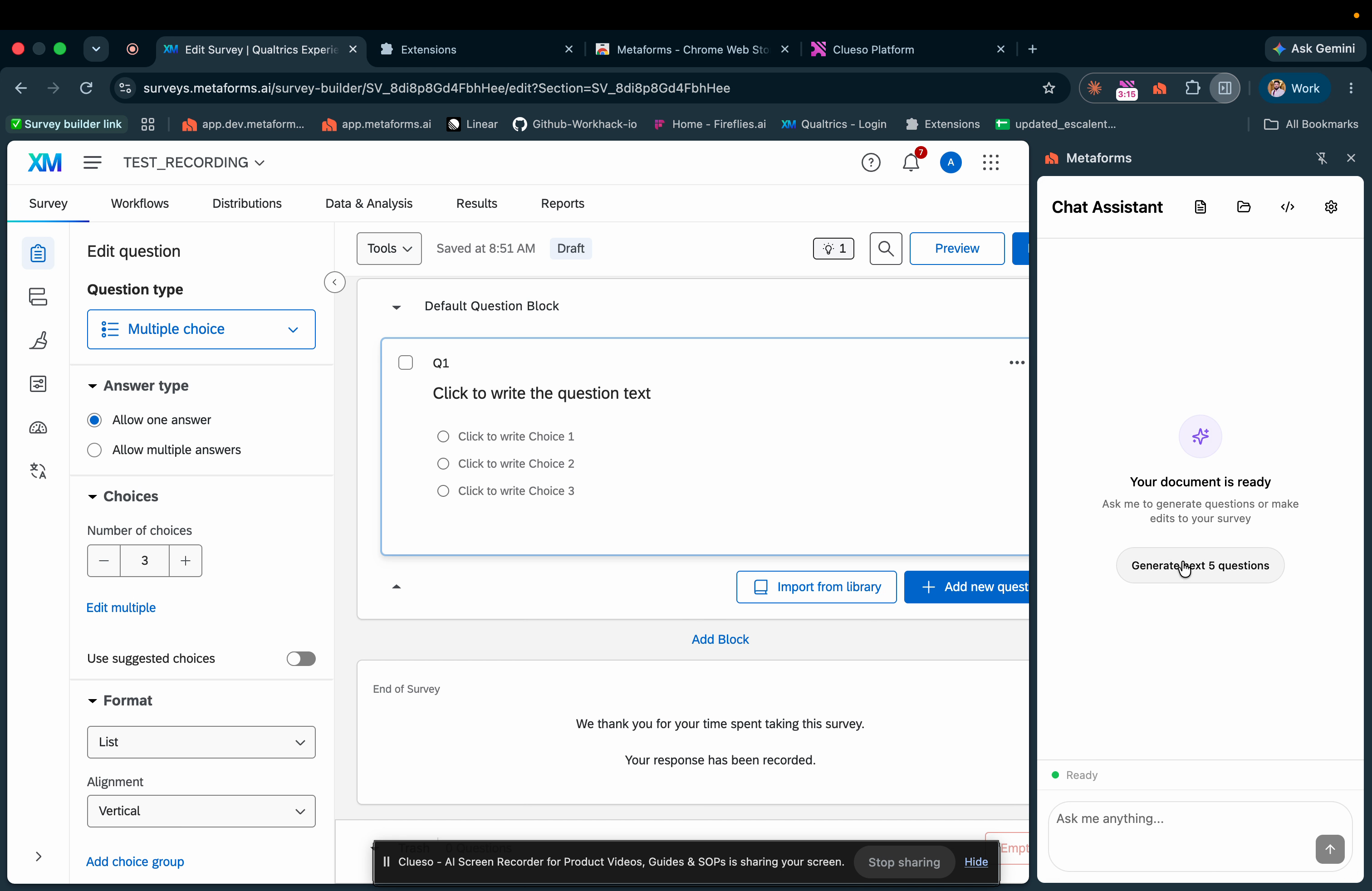
* Click **Generate Next 5 Questions**.

<figure><img src="https://usercontent.in.prod.clueso.io/743138ba-7933-4a1a-90b2-26ddeb90ccbd/cfa953b9-d54c-4080-8ea4-6c099b757065/7a497ea6-cea3-4796-adae-f4cd3ce96e11/images/9c4ba20a-e3bb-4ad6-a636-08bc9a1f2b0e.png" alt="Generate Next 5 Questions"><figcaption></figcaption></figure>

* Wait while the extension reads the questionnaire and creates the questions.

<figure><img src="https://usercontent.in.prod.clueso.io/743138ba-7933-4a1a-90b2-26ddeb90ccbd/cfa953b9-d54c-4080-8ea4-6c099b757065/7a497ea6-cea3-4796-adae-f4cd3ce96e11/images/2b8c4d4b-f317-460b-a321-227ce76d6cf4.png" alt="Questions generating"><figcaption></figcaption></figure>

* When the batch finishes, Qualtrics reloads. Review the new questions in the **Survey** builder, then open **Survey flow** and confirm the new blocks and elements are in the right order before you continue.

<figure><img src="https://usercontent.in.prod.clueso.io/743138ba-7933-4a1a-90b2-26ddeb90ccbd/cfa953b9-d54c-4080-8ea4-6c099b757065/7a497ea6-cea3-4796-adae-f4cd3ce96e11/images/9f8bff5d-c4bd-435a-a8cb-baff261b2a43.png" alt="Survey reloaded with generated questions"><figcaption></figcaption></figure>

<figure><img src="https://1402057010-files.gitbook.io/~/files/v0/b/gitbook-x-prod.appspot.com/o/spaces%2FgtHd8o9ldznZ1hKHiZvc%2Fuploads%2Fgit-blob-ed315e334eefc0b82bfe8bcaaf4d502e4605018b%2Fqualtrics-survey-flow-first-batch.webp?alt=media" alt="Survey flow after the first batch, with branch logic and End of Survey elements after each screener block"><figcaption><p>Survey flow after the first batch</p></figcaption></figure>

#### 9. Edit questions that are already created

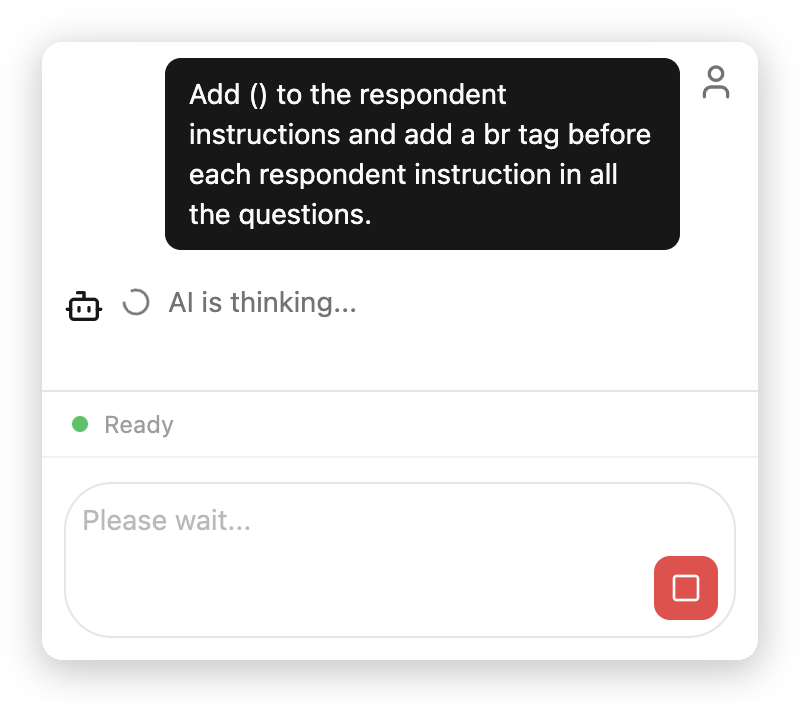
* To update questions that are already in the survey, type the instruction in the prompt box and send it. You do not need a separate edit action.

{% hint style="success" %}
**Example prompt**

Add () to the respondent instructions and add a br before each respondent instruction.
{% endhint %}

<figure><img src="https://1402057010-files.gitbook.io/~/files/v0/b/gitbook-x-prod.appspot.com/o/spaces%2FgtHd8o9ldznZ1hKHiZvc%2Fuploads%2Fgit-blob-e3c0b0197edbeb174c54a3d298f81f1da3bc62fa%2Fqualtrics-edit-prompt.png?alt=media" alt="Example prompt sent in the Metaforms Chat Assistant, with AI is thinking shown" width="400"><figcaption></figcaption></figure>

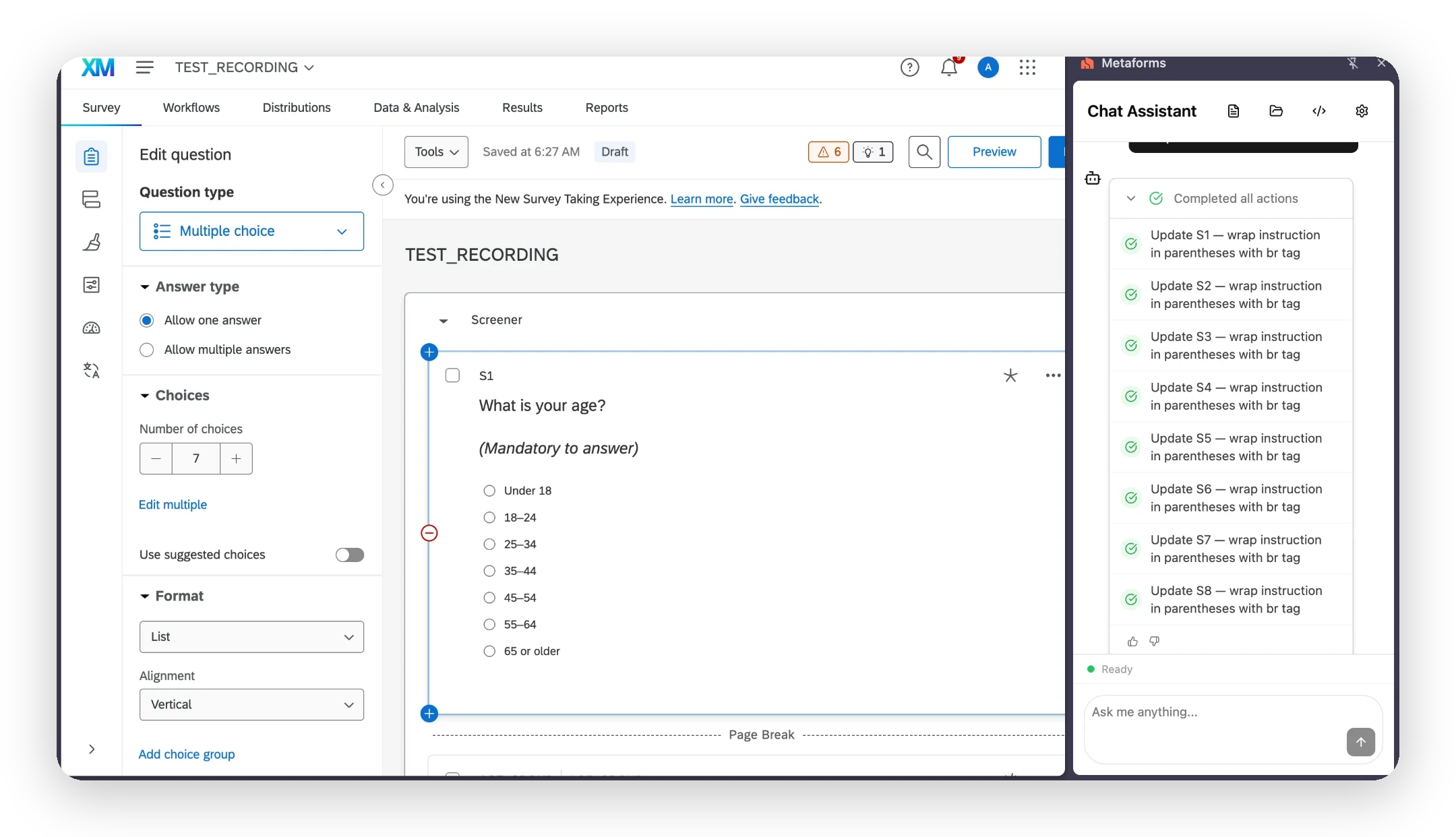
* Metaforms lists an update for each question and ticks it off as it is applied.

<figure><img src="https://1402057010-files.gitbook.io/~/files/v0/b/gitbook-x-prod.appspot.com/o/spaces%2FgtHd8o9ldznZ1hKHiZvc%2Fuploads%2Fgit-blob-907242739cf7657548e4eb3290d3b46bf98a6da9%2Fqualtrics-edit-processing.png?alt=media" alt="Chat Assistant applying the instruction update to S1 through S8" width="340"><figcaption></figcaption></figure>

* After you see **Completed all actions**, check the questions in the builder and confirm the instruction formatting changed. In this example, the S1 instruction now reads *(Mandatory to answer)* on its own line.

<figure><img src="https://1402057010-files.gitbook.io/~/files/v0/b/gitbook-x-prod.appspot.com/o/spaces%2FgtHd8o9ldznZ1hKHiZvc%2Fuploads%2Fgit-blob-f44a9ca1d0a3914f2b46ba64f4f057b17337040f%2Fqualtrics-edit-result.webp?alt=media" alt="S1 in the builder with the instruction (Mandatory to answer) on a new line"><figcaption><p>S1 after the edit is applied</p></figcaption></figure>

#### 10. Generate the next batch

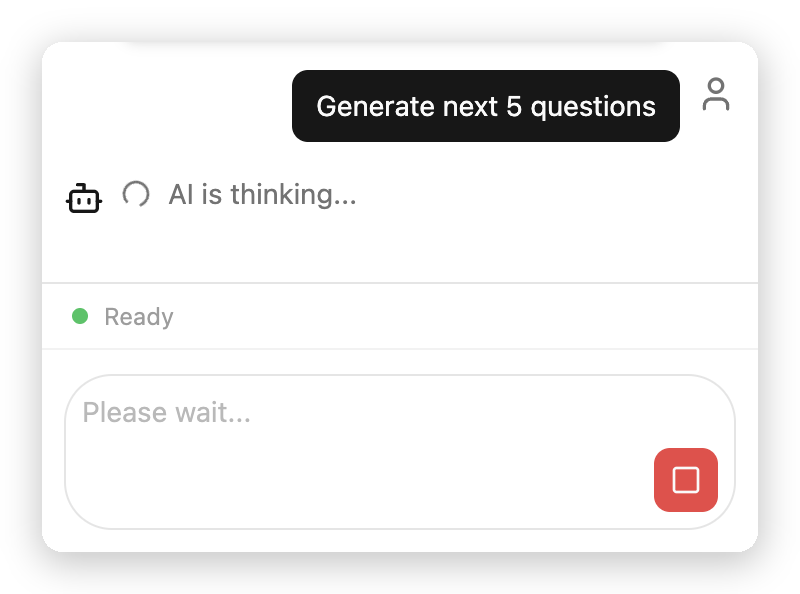
* After your edits are complete, click **Generate Next 5 Questions**.

<figure><img src="https://1402057010-files.gitbook.io/~/files/v0/b/gitbook-x-prod.appspot.com/o/spaces%2FgtHd8o9ldznZ1hKHiZvc%2Fuploads%2Fgit-blob-091365d6a2b742b869cfca21dc6b6c72b1453e92%2Fqualtrics-next-batch-generate.png?alt=media" alt="Generate next 5 questions sent in the Metaforms Chat Assistant" width="400"><figcaption></figcaption></figure>

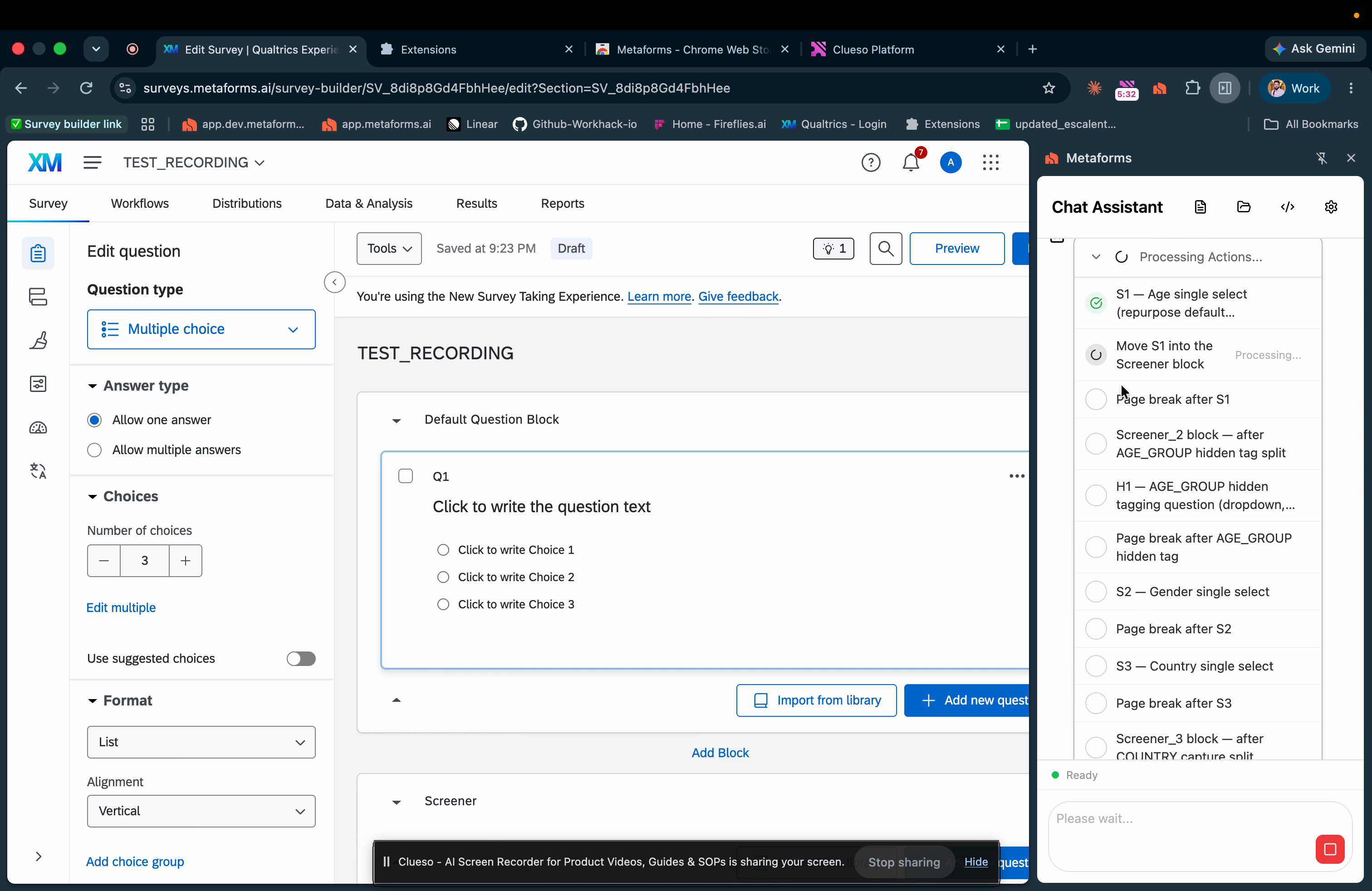
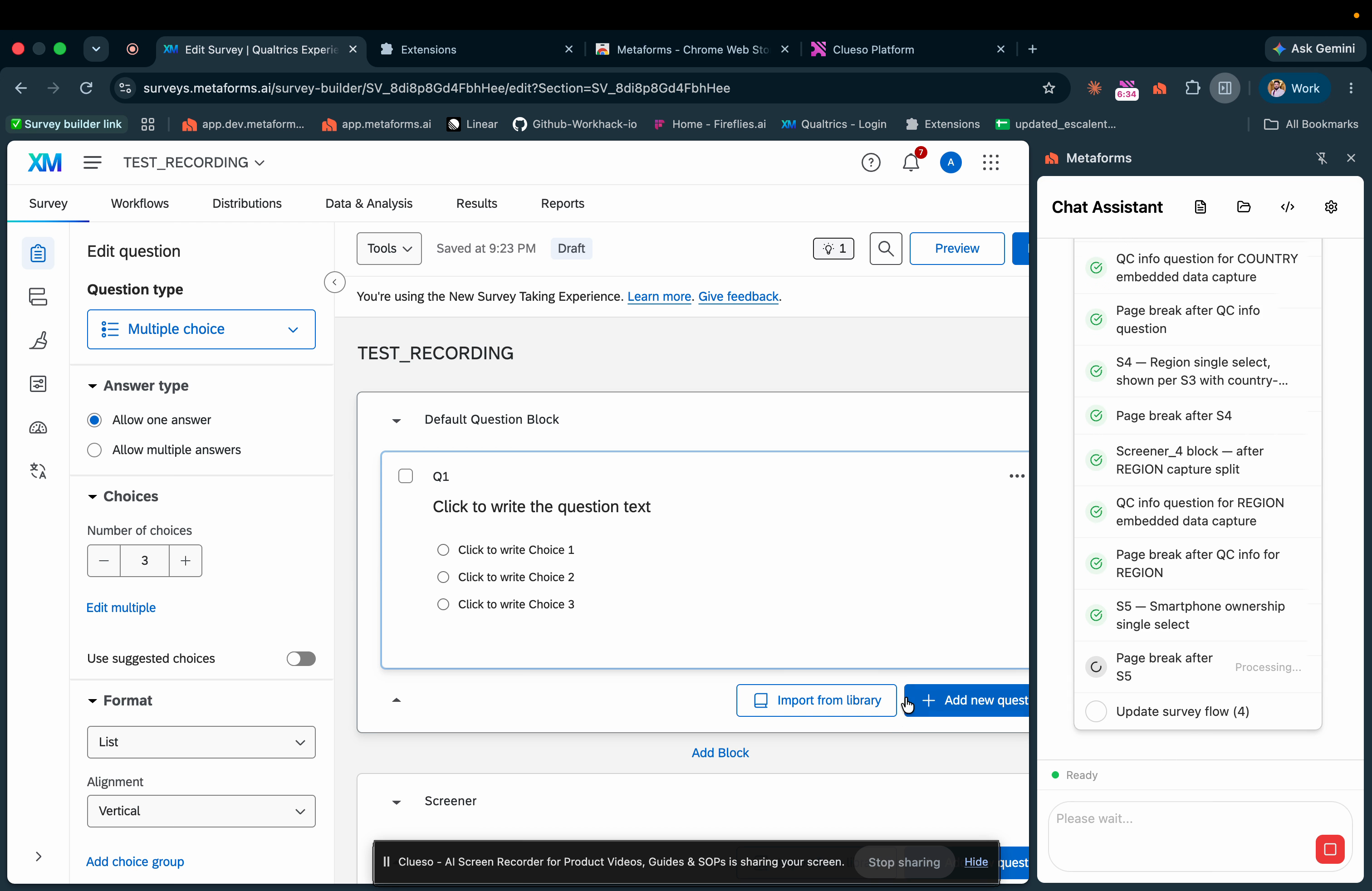
* The Chat Assistant lists each action and ticks it off as it finishes. Keep the extension open until you see **Completed all actions**.

<figure><img src="https://1402057010-files.gitbook.io/~/files/v0/b/gitbook-x-prod.appspot.com/o/spaces%2FgtHd8o9ldznZ1hKHiZvc%2Fuploads%2Fgit-blob-81255319e00e093273ba3a6ebddbbd7df1d37cef%2Fqualtrics-next-batch-processing.png?alt=media" alt="Chat Assistant processing the next batch of actions" width="340"><figcaption></figcaption></figure>

* Review the new questions in the **Survey** builder: question text, answer choices, question type, and hidden questions.

<figure><img src="https://1402057010-files.gitbook.io/~/files/v0/b/gitbook-x-prod.appspot.com/o/spaces%2FgtHd8o9ldznZ1hKHiZvc%2Fuploads%2Fgit-blob-f245180368da63c5c655fd628867e092f88b2db2%2Fqualtrics-next-batch-builder.webp?alt=media" alt="Builder showing the newly generated S6 question and the RECENT_PURCHASER hidden question"><figcaption><p>Builder after the next batch</p></figcaption></figure>

* Open **Survey flow** again and confirm the latest blocks, branches, and End of Survey elements are in the right order.

<figure><img src="https://1402057010-files.gitbook.io/~/files/v0/b/gitbook-x-prod.appspot.com/o/spaces%2FgtHd8o9ldznZ1hKHiZvc%2Fuploads%2Fgit-blob-b1522087fb9583de00ba6bb34b9da0b42023fe27%2Fqualtrics-next-batch-survey-flow.webp?alt=media" alt="Survey flow showing a branch on S6 that ends the survey, followed by the Screener_5 block"><figcaption><p>Survey flow after the next batch</p></figcaption></figure>

{% hint style="warning" %}
Check both the **Survey** builder and **Survey flow** before you generate the next batch. Fixing an issue now stops it from carrying into later questions.
{% endhint %}

* Repeat the review, edit, and generate cycle until the questionnaire is fully programmed.

For the question types Metaforms can create, see [Question types supported](/survey-programming-qualtrics/metaforms-chrome-extension-qualtrics-guide/question-types-supported.md).


---

# Agent Instructions
This documentation is published with GitBook. GitBook is the documentation platform designed so that both humans and AI agents can read, navigate, and reason over technical content effectively. Learn more at gitbook.com.

## Querying This Documentation
If you need additional information that is not directly available in this page, you can query the documentation by asking a question.

Perform an HTTP GET request on the following URL with the `ask` and `goal` query parameters:

```
GET https://help.metaforms.ai/survey-programming-qualtrics/metaforms-chrome-extension-qualtrics-guide/using-metaforms-step-by-step.md?ask=<question>&goal=<user_goal>
```

`ask` is the immediate question: it should be specific, self-contained, and written in natural language.
`goal` is what the user is ultimately trying to achieve, the reason they need the answer. Sharing it helps GitBook give you a better, more relevant answer. A goal is most helpful when it describes the outcome the user wants rather than restating the question. For example, with `ask=how do I create an API token`, a goal like `automate deployments from our CI pipeline` lets GitBook tailor the answer to that use case.

The response will contain a direct answer to the question and relevant excerpts and sources from the documentation.

Use this mechanism when the answer is not explicitly present in the current page, you need clarification or additional context, or you want to retrieve related documentation sections.