> For the complete documentation index, see [llms.txt](https://help.metaforms.ai/llms.txt). Markdown versions of documentation pages are available by appending `.md` to page URLs; this page is available as [Markdown](https://help.metaforms.ai/survey-programming-confirmit/metaforms-chrome-extension-confirmit-guide/using-metaforms-step-by-step.md).
# Using Metaforms: Step-by-Step
#### 1. Log In to ConfirmIt
* Open ConfirmIt in Chrome and **log in as usual**.
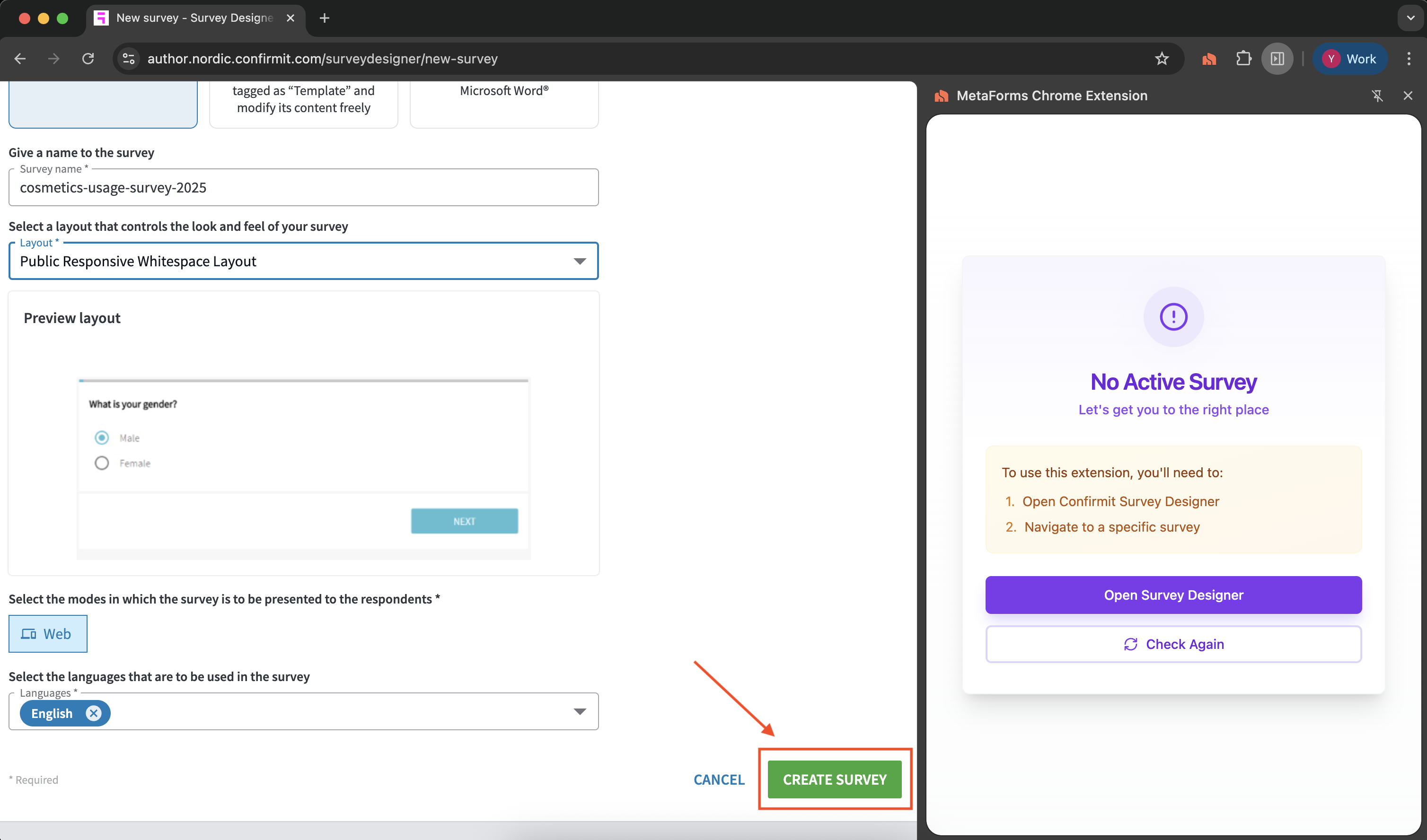
* Make sure you are on the **Survey Designer page**.
#### 2. Log In to Metaforms
* Open the extension by clicking the Metaforms icon.
* Log in using your **Metaforms credentials**.
#### 3. Start a New Survey
* The Metaforms extension will detect the page.
* It will prompt you to **open a new survey** in Survey Designer.
* ⚠️ Currently, **only new surveys** are supported.
#### 4. Upload Your Questionnaire
* Upon creating a new survey, the tool automatically reads the survey details.
* Inside the extension, **upload your questionnaire file** and click on **Generate session**.
* Metaforms will analyze your document and generate an initial skeleton containing:
* Folder structure
* Reusable lists (if any)
* Standard call blocks
#### 5. Generate Questions (up to 5 at a time)
* You’ll see a prompt to **"Generate next 5 questions"**.
* Alternatively, on clicking the dropdown, you can choose to create between 1-5 questions.
* After clicking on "Generate next 5 questions", the screen is temporarily blocked from creating new questions/nodes while Metaforms is processing.
{% hint style="success" %}
On clicking any of the generated questions or nodes, you will be navigated to that specific element on the ConfirmIT screen
{% endhint %}
* After each batch, a new bubble will appear prompting you to generate the next set of questions.\
Before continuing, we recommend reviewing the questions, answer options, and any nodes or scripts that were created. You can edit, add, or delete items as needed.
* Once you're satisfied with the current batch, click **"Create next 5/4/3/2/1 questions"** to proceed.
* Continue generating till you're done!
* **Why 5 questions at a time?**
* This allows you to **review** and fix issues early.
* It improves accuracy for the remaining questions
---
# Agent Instructions
This documentation is published with GitBook. GitBook is the documentation platform designed so that both humans and AI agents can read, navigate, and reason over technical content effectively. Learn more at gitbook.com.
## Querying This Documentation
If you need additional information that is not directly available in this page, you can query the documentation dynamically by asking a question.
Perform an HTTP GET request on the current page URL with the `ask` query parameter, and the optional `goal` query parameter:
```
GET https://help.metaforms.ai/survey-programming-confirmit/metaforms-chrome-extension-confirmit-guide/using-metaforms-step-by-step.md?ask=&goal=
```
`ask` is the immediate question: it should be specific, self-contained, and written in natural language.
`goal` is optional and describes the broader end goal you are ultimately trying to accomplish on behalf of the user. GitBook uses it to tailor the answer towards what is most useful for that goal.
The response will contain a direct answer to the question and relevant excerpts and sources from the documentation.
Use this mechanism when the answer is not explicitly present in the current page, you need clarification or additional context, or you want to retrieve related documentation sections.