> For the complete documentation index, see [llms.txt](https://help.metaforms.ai/llms.txt). Markdown versions of documentation pages are available by appending `.md` to page URLs; this page is available as [Markdown](https://help.metaforms.ai/reports/presentations/creating-a-new-chart-deck.md).
# Creating a new Chart Deck
From any project, navigate to the **Report** tab and click **New Report > Chart Deck**. This opens a guided setup wizard that walks you through four steps.
{% stepper %}
{% step %}
**Step 1 — Research Brief**
Give your deck a name (e.g. *Q1 Brand Tracker Results*) and, optionally, provide a research brief so the AI understands the study context. You have three choices:
| Option | When to use |
| -------------------- | ------------------------------------------------------------------- |
| **Select existing** | A brief was already uploaded to the project. Pick it from the list. |
| **Upload brief** | Drag-and-drop or browse for a DOC, DOCX, PDF, or TXT file. |
| **Paste objectives** | Quickly type or paste the key research objectives inline. |
Click **Continue** to proceed, or **Skip** if you don't have a brief handy — you can always add one later.
{% endstep %}
{% step %}
**Step 2 — Questionnaire**
Select or upload the questionnaire document used for the survey. This helps the AI ground the presentation in the questions asked in the survey.
* If questionnaire files already exist in the project, pick one from the list.
* Otherwise, drag-and-drop a DOC, DOCX, PDF, or TXT file to upload.
Click **Continue** or **Skip**.
{% endstep %}
{% step %}
**Step 3 — Data Source**
This is where you connect your cross-tabulation data. Three options are shown:
| Option | Description |
| ---------------------------------- | ----------------------------------------------------------------------------------------------------------------------------- |
| **Upload cross-tab file** | Upload an `.xlsx` or `.csv` file (max 10 MB). Tables are automatically extracted in the background using AI-assisted parsing. |
| **Reference existing tabulations** | If you have already run tabulations inside Metaforms, select specific tables from the workspace. |
| **Use sample cross-tab data** | Load pre-built sample tables so you can explore the feature without your own data. |
You can also click **Skip — I'll add data later** to proceed without any data.
**Uploading a cross-tab file**
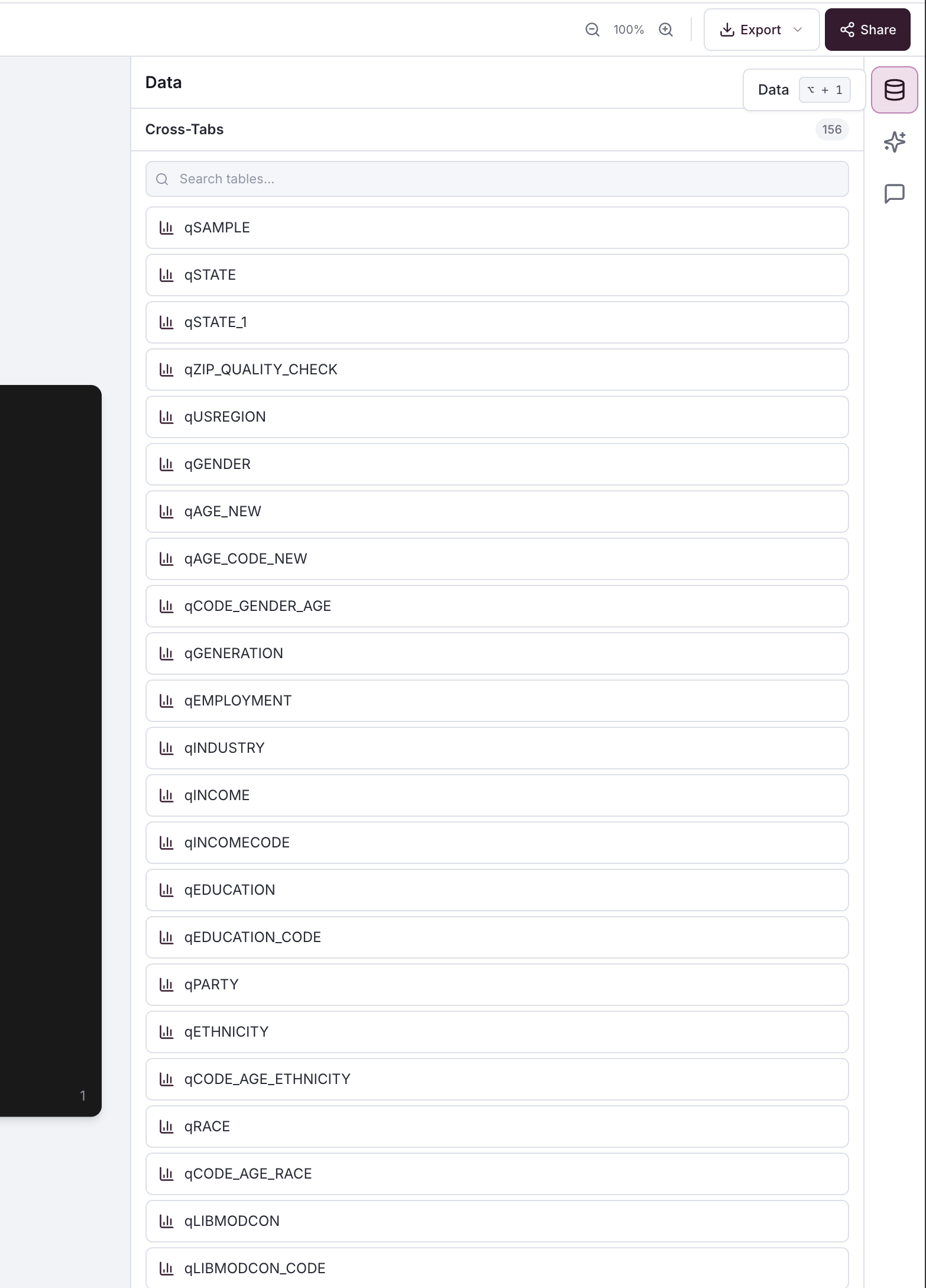
Click the upload area and select an Excel (`.xlsx`) or CSV (`.csv`) file up to 10 MB. Once uploaded, Metaforms automatically extracts individual tables from the file in the background. You can track extraction progress in the **Cross-Tabs** panel on the right:
* **Extracting** — a progress banner shows the file name while tables are being detected and parsed.
* **Available** — extraction is complete. A **Build deck with AI** button appears so you can kick off AI-generated slides from the extracted data.
* **Failed** — if extraction encounters an error, an error message is shown. You can clear the file and try again.
{% hint style="info" %}
After uploading, the AI agent is **not** started automatically. This lets you review the extracted tables first, then click **Build deck with AI** when you're ready.
{% endhint %}
**Selecting tables**
When you choose **Reference existing tabulations**, all computed tables from your tabulation workspace are pre-selected. You can search by name or variable and toggle individual tables on or off. A summary shows how many tables are selected before you continue.
{% endstep %}
{% step %}
**Step 4 — Choose How to Start**
Pick one of three starting modes.
**Blank**
Creates an empty deck. The AI agent is kicked off automatically and will propose an outline based on whatever brief, questionnaire, and data you provided.
**From Outline/Notes**
Paste slide notes or a narrative outline. The AI splits your content into logical slides. The AI Agent follows your outline to generate the first draft. Example of a slide by slide outline notes is given below
```
Intro to our strategy
• Key finding 1
• Key finding 2
---
Key metrics from Q1
• Revenue grew 12%
• NPS up 8 points
---
Next steps
• Launch phase 2
```
**Template**
Browse your organisation's uploaded PowerPoint templates. Select one, then tell the AI how to use it:
* *Use the design system only* — apply colours and fonts but generate fresh content.
* *Import both slides and content* — clone the template as-is.
You can also type a custom instruction (e.g. *"Import all slides and adapt the content for our Q1 report"*).
{% hint style="info" %}
Don't have any templates yet? Click **Add new template** to navigate to the template management page and upload a `.pptx` file.
{% endhint %}
{% endstep %}
{% step %}
**Step 5 — Create Deck with AI (cross-tab upload)**
If you uploaded a cross-tab file in Step 3, the deck opens without the AI agent running. Once table extraction is complete, the **Cross-Tabs** panel on the right shows all extracted tables and a **Build deck with AI** button. Review the tables, then click **Build deck with AI** to start the AI agent — it will use the extracted data along with any brief or questionnaire you provided to generate your slides.
{% endstep %}
{% endstepper %}
---
# Agent Instructions
This documentation is published with GitBook. GitBook is the documentation platform designed so that both humans and AI agents can read, navigate, and reason over technical content effectively. Learn more at gitbook.com.
## Querying This Documentation
If you need additional information that is not directly available in this page, you can query the documentation dynamically by asking a question.
Perform an HTTP GET request on the current page URL with the `ask` query parameter, and the optional `goal` query parameter:
```
GET https://help.metaforms.ai/reports/presentations/creating-a-new-chart-deck.md?ask=&goal=
```
`ask` is the immediate question: it should be specific, self-contained, and written in natural language.
`goal` is optional and describes the broader end goal you are ultimately trying to accomplish on behalf of the user. GitBook uses it to tailor the answer towards what is most useful for that goal.
The response will contain a direct answer to the question and relevant excerpts and sources from the documentation.
Use this mechanism when the answer is not explicitly present in the current page, you need clarification or additional context, or you want to retrieve related documentation sections.