> For the complete documentation index, see [llms.txt](https://help.metaforms.ai/llms.txt). Markdown versions of documentation pages are available by appending `.md` to page URLs; this page is available as [Markdown](https://help.metaforms.ai/data-processing/dimensions.md).
# Dimensions
Metaforms' Data Validation module helps QA and data processing teams verify that survey data matches the questionnaire design. Rather than manually writing and running validation scripts, the platform uses AI to automatically generate checks that catch programming errors, data mismatches, and logic failures — at scale and with far less room for human error.
> **Important:** Data Validation focuses on **data correctness checks**, not data cleaning. It verifies whether the survey was programmed correctly and whether the collected data is consistent with the questionnaire. Features like identifying speeders, straight-liners, or nonsensical open-ended responses are part of the product roadmap and are not included in the current release.
Data Validation with Dimensions uses MDD (metadata) and DDF (case data) files along with a template. A template is a set of Dimensions (DMS) files that define the execution framework — including helper functions, report formatting, and export logic. The platform generates validation scripts in DMS, injects them into the template, and executes the template to run all checks. Reporting is handled entirely by the template, which can export results to HTML or Excel.
***
### 1. Setting Up a Data Validation Project
This section covers everything from creating your project to generating validation scripts — the foundational setup before you begin reviewing or running checks.
#### Step 1: Create a New Project
From the Metaforms home screen, enter a project name and click **Create Project**. This creates the workspace where your questionnaire, data files, and validation scripts will live.

#### Step 2: Open the Data Validation Tab
From the left-hand menu inside your project, select **Data Validation** to enter the module.

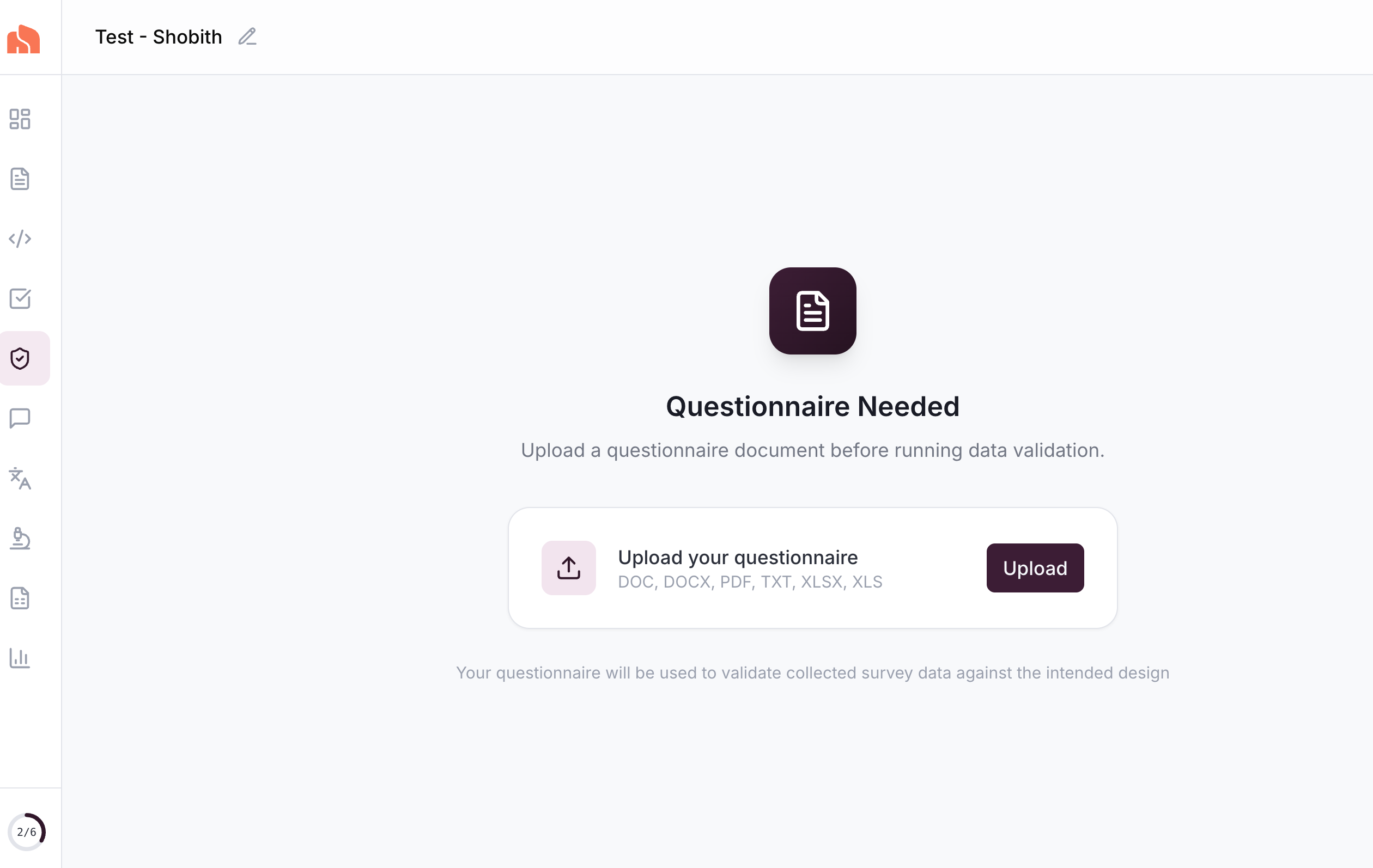
#### Step 3: Upload Your Questionnaire
Click the upload area to select your questionnaire file (PDF or DOCX). Metaforms will parse and analyze the document, extracting question texts, response options, and routing logic. This typically takes a few seconds.
> **Tip:** You can also upload additional reference files (such as brand lists, option lists, or routing specifications) alongside your questionnaire. The AI reads these files to build more accurate validation logic for complex survey designs.
#### Step 4: Select the Scripting Method, Template, and Data Files
Choose your scripting language as Dimensions, then:
* **Select your template** — The template is a set of DMS files (typically 7–9 files) that define the execution framework. It includes a main file (e.g., analyze\_dv.dms), an underscore DV file (e.g., \_dv.dms) where validation checks are injected, and several helper files that provide supporting functions for pre-processing, post-processing, and report generation. Without a template, Dimensions-based validation cannot proceed. [Learn how to setup templates](/data-processing/templates.md)
* **Upload the required files** — Choose the project folder that contains your survey data. The platform will use this as the working directory for execution. Specify the MDD and DDF file paths. Dimensions validation requires paths to the MDD file (which contains the survey metadata and variable definitions) and the DDF file (which contains the actual case data). Click Start Validation to begin.\
#### Step 5: AI Generates Validation Scripts

Once started, the AI agent takes over. On the right side of the screen, you can watch the agent's progress as it works through three stages:
1. **Metadata extraction** — The agent reads the SAV file and extracts all variable definitions, question structures, and coding schemes.
2. **Questionnaire comparison** — It compares the extracted metadata against your uploaded questionnaire to identify any mismatches in question text, response options, or variable codes. Questions where the metadata aligns with the questionnaire are marked **valid**; those with discrepancies are marked **invalid** and flagged for your attention.
3. **Script generation** — For each valid question, the agent writes a Dimensions validation script. These scripts check for conditions like:
* **Range checks** — Whether response values fall within the expected set of options (e.g., options 1–5 for a single-select question, flagging any unexpected 6th or 7th value).
* **Single-select vs. multi-select enforcement** — Whether a question marked as single-select truly has only one response per respondent, or whether a multi-select question is being treated as single-select.
* **Termination logic** — Whether respondents who should have been terminated (e.g., answering "No" to a screening question) were actually routed out of the survey.
* **Skip and routing logic** — Whether respondents were correctly shown or skipped past questions based on their prior answers and the questionnaire's base conditions.
Once the scripts are generated, the platform injects them into the template's designated injection point (replacing the placeholder in the underscore DV file). When checks are executed, the platform runs the main analyze DV file, which orchestrates the full validation workflow using the template's built-in logic.
> This process typically takes **5–15 minutes** depending on the number of questions. For a 50-question survey, expect roughly 12–15 minutes; a 36-question survey may complete in 10–15 minutes.
***
### 2. Understanding the Interface
Once script generation is complete, the Data Validation module presents two primary views: **Checks** and **Respondents**. Together, they give you full visibility into the validation logic and the underlying data.
#### Checks View
The Checks view is the main workspace for reviewing and managing your validation scripts. Each block corresponds to a question from the questionnaire. You can also use the navigation on the left to scroll to scripts for specific questions.
> Every check will be followed after a comment that describes the intent of the check
#### Respondents View

The Respondents tab provides a raw tabular view of the data from your SAV file. Each row represents a respondent, and each column corresponds to a variable.
You can use column filters to narrow down the view to specific variables or respondent subsets. This is useful for spot-checking data before running validation, or for examining the raw responses of respondents flagged by a particular check.

After checks are run, the Respondents view also supports **validation filters** — letting you display only respondents who failed validation on specific questions, so you can quickly drill into problem areas.
***
### 3. Reviewing and Editing Validation Scripts
Before running your checks, it is important to review the AI-generated scripts to ensure they match your expectations. The AI acts as a copilot — it handles the bulk of script generation, but human review is essential to catch edge cases, confirm business logic, and ensure accuracy.
#### Review the Generated Code
Expand any check in the Checks view to see the full validation script. Each script is a self-contained Dimensions code that targets a single question. Read through the logic to confirm it aligns with the questionnaire's intended behavior.
Once you are satisfied that a script is correct, you can mark it as **Reviewed**. This helps you track progress across a large survey — you can quickly see which checks have been vetted and which still need attention.
#### Make Manual Edits
If the generated script needs adjustments, you can edit it directly in the built-in code editor. Changes are saved within the project. Metaforms respects your manual edits — any code you write or modify will be preserved, even if you later ask the AI to regenerate other parts of the project.
This is useful for adding custom checks that go beyond the standard validations (e.g., cross-question consistency rules) or correcting a check where the AI misinterpreted the questionnaire logic.
#### Use the AI Chat to Modify Scripts
Instead of editing code directly, you can use the **AI chat interface** to request changes in natural language. For example:
* *"Add a check that Q3 should be skipped if Q1 equals 2."*
* *"The termination condition for S1 should flag respondents who answered 'No' but were not terminated."*
* *"Change the valid range for Q7 from 1–5 to 1–7."*
The AI will update the script accordingly. If your instruction is ambiguous, it will ask clarifying questions before making changes. This makes it accessible even if you are not comfortable writing Dimensions code yourself.
***
### 4. Running Checks and Reviewing Results
Once you have reviewed your scripts and are confident they are correct, it is time to execute them against the dataset.
#### Step 1: Run All Checks
Click **Run All Checks** to execute every validation script in the project. The platform runs all checks against your respondent data and returns results within seconds, regardless of dataset size.
Once the checks have run, the yellow dot next to each question indicates that respondents have been flagged for that question.
#### Step 2: View Flagged Respondents
For any failed check, click the **View** button next to it. This takes you directly to the Respondents tab, automatically filtered to show only the respondents who failed that specific check. The columns are also filtered to display only the relevant variables, so you can immediately see the problematic data without sifting through the full dataset.
This makes it straightforward to understand exactly which respondents were flagged and why.
#### Step 3: Download the DMS Script
Once you have reviewed the results, click Download DMS Script to export the generated validation script as a standalone DMS file.
This provides the generated DMS script for download. This is because the template itself handles all reporting. The downloaded script can be used independently: you can inject it into your own copy of the template, share it with your programming team, or archive it alongside the project files.
---
# Agent Instructions
This documentation is published with GitBook. GitBook is the documentation platform designed so that both humans and AI agents can read, navigate, and reason over technical content effectively. Learn more at gitbook.com.
## Querying This Documentation
If you need additional information that is not directly available in this page, you can query the documentation dynamically by asking a question.
Perform an HTTP GET request on the current page URL with the `ask` query parameter, and the optional `goal` query parameter:
```
GET https://help.metaforms.ai/data-processing/dimensions.md?ask=&goal=
```
`ask` is the immediate question: it should be specific, self-contained, and written in natural language.
`goal` is optional and describes the broader end goal you are ultimately trying to accomplish on behalf of the user. GitBook uses it to tailor the answer towards what is most useful for that goal.
The response will contain a direct answer to the question and relevant excerpts and sources from the documentation.
Use this mechanism when the answer is not explicitly present in the current page, you need clarification or additional context, or you want to retrieve related documentation sections.